Two-step verification
Confirm it's you with an authenticator app after the emailed code. Owners must, the rest of your team can, and Account security also has Sign out everywhere.
Two-step verification adds a second check when you sign in to the staff app. After the code we email you, you enter a 6-digit code from an authenticator app on your phone or computer. Someone who gets into your email still cannot get into your organization without it.
Where to find it
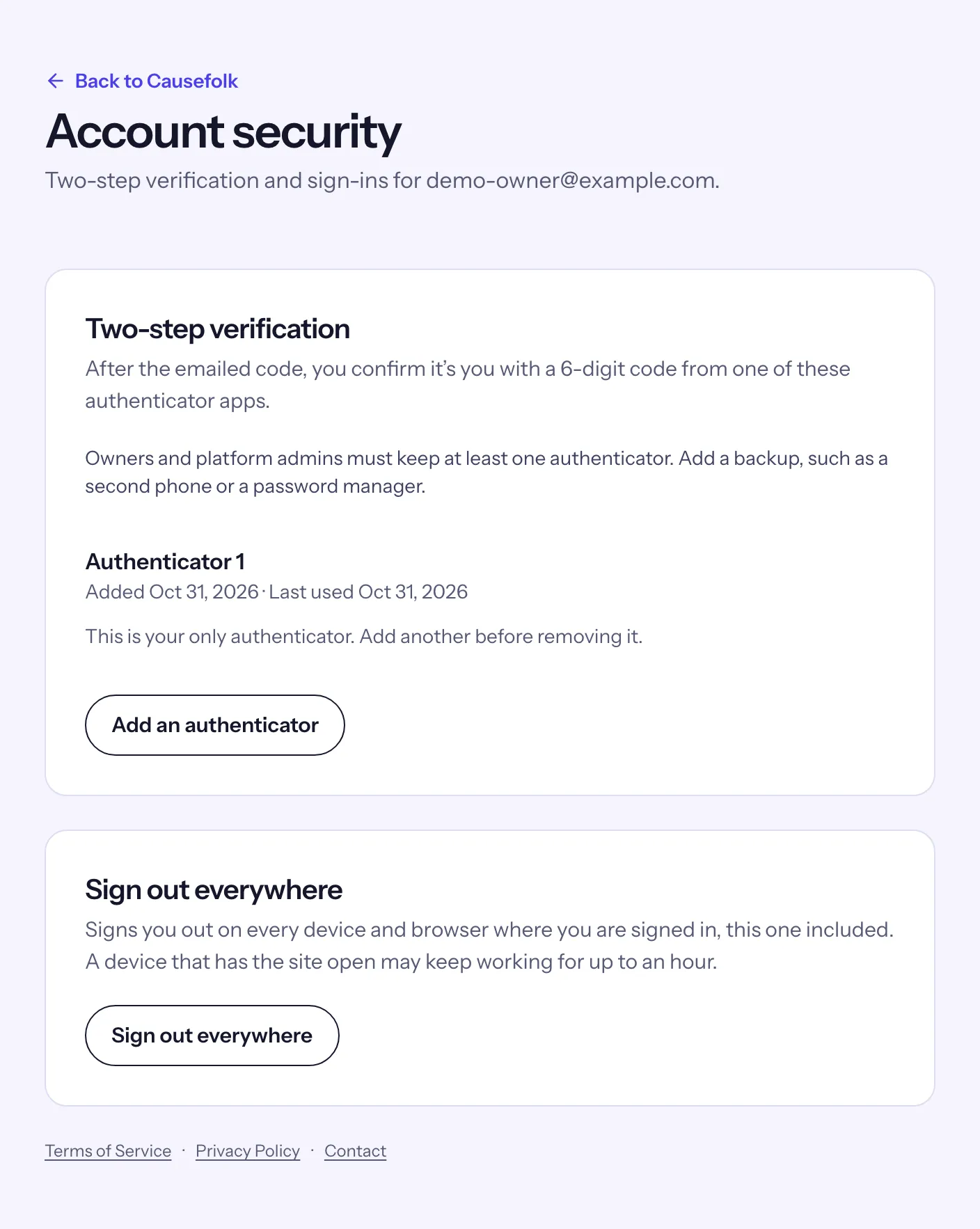
- Account security, at the bottom of the staff app's sidebar, above your email (on a phone, in the menu). It opens your account's security page: your authenticators and Sign out everywhere.
- Owners who have not turned it on yet see Set up two-step verification instead of any other staff page.
Who must use it
- Owners of any organization must. The staff app asks you to set it up before it shows anything else: right after you create an organization, the first time you open the staff app after this change, or when someone makes you an owner.
- Staff, coordinators and viewers can turn it on for themselves from Account security: choose Add an authenticator, scan the QR code and enter the app's code. Once it is on, they are asked for a code at every sign-in, like an owner.
- Volunteers are never asked. Signing in to your volunteer site stays the emailed code only.
Set it up
You need an authenticator app, such as Google Authenticator, Microsoft Authenticator, 1Password or Authy.
- On Set up two-step verification, scan the QR code with the app. If you cannot scan it, type the key shown under "Can't scan it? Enter this key in the app instead:" into the app.
- Enter the 6-digit code from the app and choose Verify and turn on.
- You see "Two-step verification is on". Choose Add a backup authenticator to add a second one now, or Continue to go on to your organization.
If the code is refused, check that your phone's clock is set automatically, then enter the newest code the app shows.
Signing in with it
- Sign in as always: enter your email, choose Email me a sign-in code and type the code from the email. That code expires in 15 minutes.
- On Confirm it's you, enter the 6-digit code your authenticator app shows and choose Verify. If you have more than one authenticator, first pick the one the code is from under Authenticator.
If you also volunteer, the volunteer sites and My volunteering ask for the same code after the emailed one.
If you connected a Google or Microsoft account, you can choose Continue with Google or Continue with Microsoft instead of the emailed code in step 1; step 2 is the same. See Sign in with Google or Microsoft.
Add a backup authenticator
A second authenticator, on another phone or in a password manager, lets you sign in if you lose the first.
- Open Account security and choose Add an authenticator.
- Scan the new QR code with the second app, enter its code and choose Verify and add.
Your authenticators are listed as Authenticator 1, Authenticator 2 and so on, each with the day it was added and the day it was last used. You can have up to 10. Remove takes one off after you confirm with Yes, remove. An owner cannot remove their last one: "This is your only authenticator. Add another before removing it." Staff who choose to use two-step verification can remove their only one, which turns it off.
If you lose your phone
- Use your backup authenticator, if you added one.
- Otherwise, contact Causefolk support. The Confirm it's you page shows the address under "Lost your authenticator?". Support first confirms it's really you in another way, for example by checking with another owner of your organization, so ask your organization's other owner to vouch for you. Then support resets two-step verification: your authenticators are removed, you are signed out on every device, and you get the email "Your two-step verification was reset".
- Sign in again with the emailed code. Owners then set up an authenticator again.
Another owner cannot reset it for you from the staff app; only Causefolk support can.
Confirm it's you
Before a few sensitive actions, Causefolk asks for a fresh code from your authenticator app when your last one was entered more than 10 minutes ago. A Confirm it's you window opens; enter the 6-digit code and choose Confirm, and the action goes ahead. Cancel changes nothing.
These are the actions that could expose your volunteers' data, send data or credentials somewhere else, or lock people out, so an unattended laptop that is still signed in is not enough:
- deleting the organization, canceling its deletion and requesting a data export;
- creating an API key, and adding, editing or rotating a webhook endpoint;
- connecting or editing a CRM connection, including approving or reconnecting Raiser's Edge NXT;
- saving a Checkr API key and rotating the Checkr webhook link;
- inviting an owner, changing someone's role to or from owner, and removing a member;
- subscribing and Manage billing;
- adding an authenticator when you already have one, removing one, and Sign out everywhere;
- connecting a Google or Microsoft account, and disconnecting or removing one.
If you have no authenticator, there is nothing to confirm with, so you are not asked: you add your first one, sign out everywhere, or disconnect or remove a Google or Microsoft account straight away. Connecting a Google or Microsoft account is the exception: it needs an authenticator, so you are asked to set one up first. Owners always have one, because the staff app asks them to set it up before anything else.
Sign out everywhere
- Open Account security and choose Sign out everywhere.
- Choose Yes, sign out everywhere (and confirm it's you if asked).
You are signed out on every device and browser where you were signed in, this one included, and notifications stop on all of them. The sign-in page then says "You were signed out on every device." A device that has the site open may keep working for up to an hour.
Use it when you lose a phone or laptop, or when you get a sign-in email you don't recognize. If you have no authenticator, it works the same, without the confirmation.
Sign-in emails
When your account signs in from a device or browser it has not used before, you get the email "New sign-in to Causefolk" with the time (in UTC and in your organization's time zone), the device, such as "Chrome on Mac", and the approximate location.
- If it was you, there is nothing to do.
- If it wasn't, sign in, open Account security and choose Sign out everywhere, then contact Causefolk support at the address in the email.
Your very first sign-in records the device without an email. A new browser, or a browser whose cookies were cleared, counts as a new device. If you belong to no organization (a network member only), no email is sent.
When the staff app signs you out
For your security, the staff app signs you out:
- after 12 hours without opening or reloading a page: "You were signed out after 12 hours without activity.";
- 7 days after you signed in, however active you were: "For your security, sign in again every 7 days."
Sign in again to carry on. A page left open does not count as activity. These limits are for your team only: volunteers stay signed in as before.