Data export and deletion
Download everything your organization keeps on Causefolk, or delete the organization for good after a 14-day grace period.
Your data is yours. An owner can take a full copy at any time, and can close the organization and delete everything in it.
Where to find it
Settings → Data, owners only: "Take a copy of everything your organization keeps here, or close the organization for good." It works even while your trial or subscription has ended.
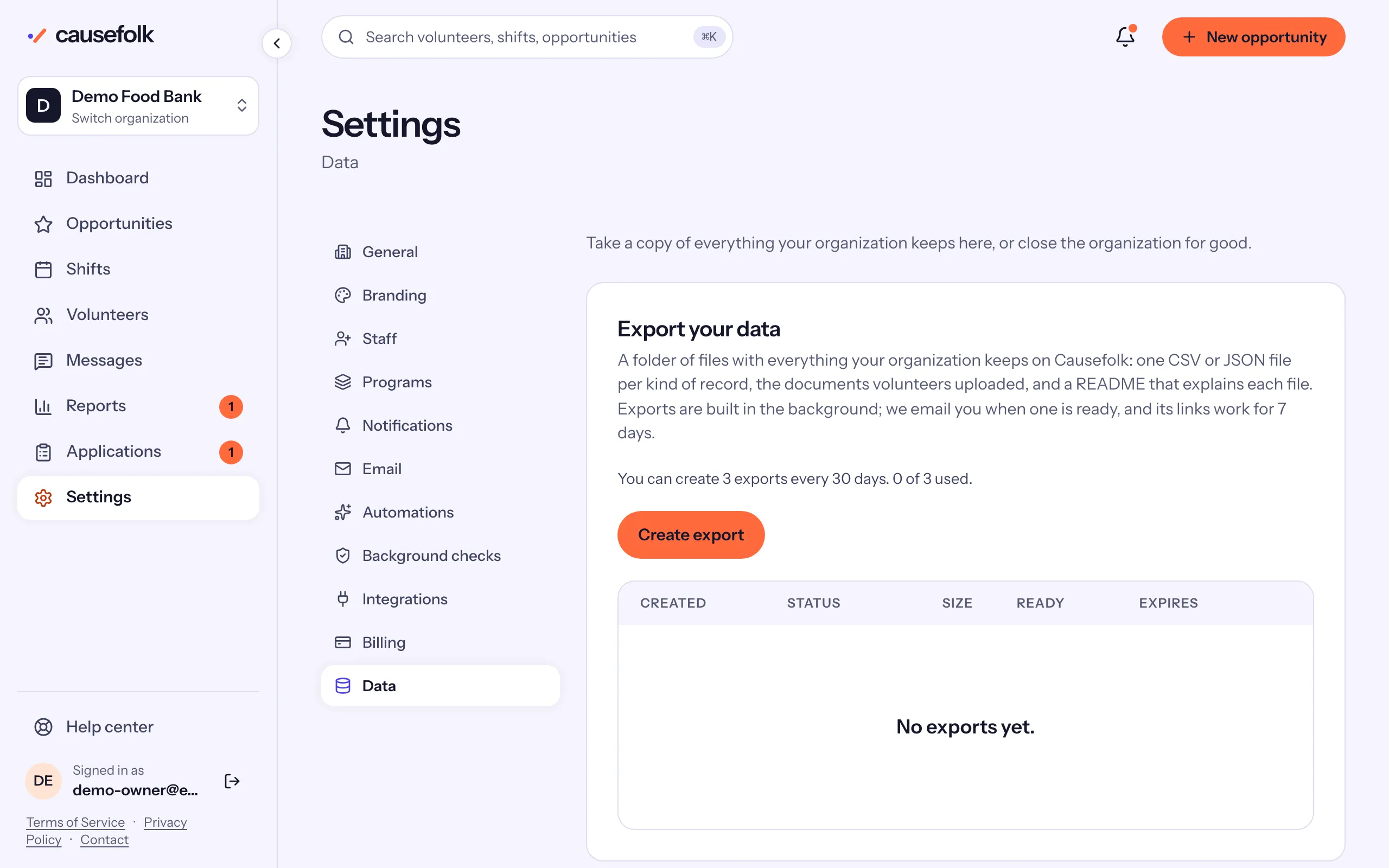
Export your data
- Open Settings → Data.
- Under Export your data, choose Create export, then Start the export.
- The export is built in the background; the Exports table shows it as Queued, then Building. You get an email when it is Ready.
- Choose Download. Start with README.txt: it says what each file holds. Then download the files one by one.
An export is a folder of files, one per kind of record: your settings, programs, team, volunteers with every detail you keep, notes, opportunities, shifts, signups, applications and their answers, waivers and their signatures, hours, messages and what was sent, segments and more. It includes the documents volunteers uploaded. It leaves out API keys, signing secrets, sign-in and kiosk tokens and other records that only make the service work.
The files are CSV (and JSON where a list fits better), in UTF-8, ready for a spreadsheet. Times are in UTC.
Delete export, then Delete, removes an export's files before they expire.
Delete your organization
Deleting removes "volunteers, opportunities, shifts, hours, applications, messages and uploaded files". It cannot be undone, so create and download an export first.
- Under Delete this organization, type your subdomain where it says Type … to confirm.
- Tick "I understand that everything will be deleted and cannot be recovered."
- Choose Delete organization, then Schedule the deletion.
The deletion happens 14 days later, and every owner is emailed the date. During those days:
- the organization is closed: volunteer pages say "This organization is closing", nothing can be changed, scheduled messages are canceled, texts and automated emails stop, and webhooks wait;
- a banner on every page says "Scheduled for deletion on" the date, and owners see Cancel deletion;
- your subscription is set not to renew. No refund is made.
Owners get a reminder 2 days before, and an email once it is done. Cancel deletion reopens everything as it was, until the deletion starts.
A volunteer's own data
- A volunteer can Download my data from their profile, and ask you to delete their record. You see the request as a banner on their record.
- Owners and staff delete one volunteer's record from the bottom of it. Their hours stay in your totals without their name. See The volunteer record.