API keys and webhooks
Let another system read your Causefolk data with an API key, and send it changes as they happen with signed webhooks.
If your team uses other software, such as a database, a reporting tool or a custom integration, Causefolk can feed it. An API key lets that system read your data whenever it asks. A webhook pushes each change to it as it happens. Both are for whoever builds the connection on your side; this article covers what you set up in Causefolk.
Where to find it
Settings → Integrations. The API keys card comes first, then CRM connections, then Webhooks. The API keys and webhooks cards are for owners only; staff can open the page too, but see only the CRM connections card, read-only.
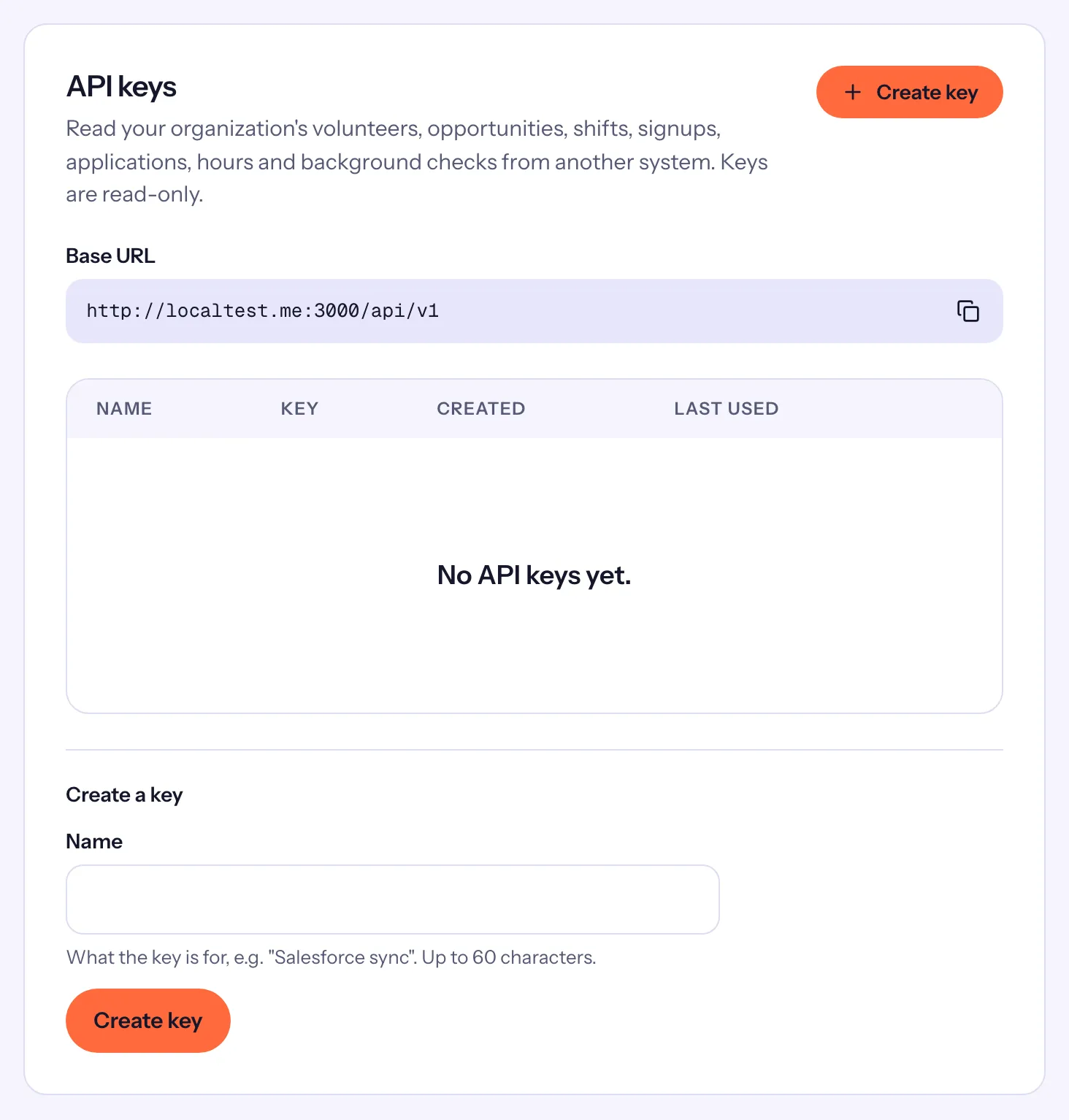
Create an API key
- In API keys, under Create a key, enter a Name: "What the key is for, e.g. "Salesforce sync"."
- Choose Create key.
- Copy the key with Copy key. "Copy it now: it will not be shown again." Then choose Done.
Give the key and the Base URL to whoever builds the connection. Keys can read your organization, volunteers, opportunities, shifts, signups, applications, hours, background checks, and the messages your team sent; the card's Quick reference shows how to send the key.
Keys are read-only: nothing can be changed through them. The list shows each key's last four characters, when it was created and when it was last used. Revoke, then Confirm revoke, stops a key at once: "Anything using this key stops working at once."
Add a webhook endpoint
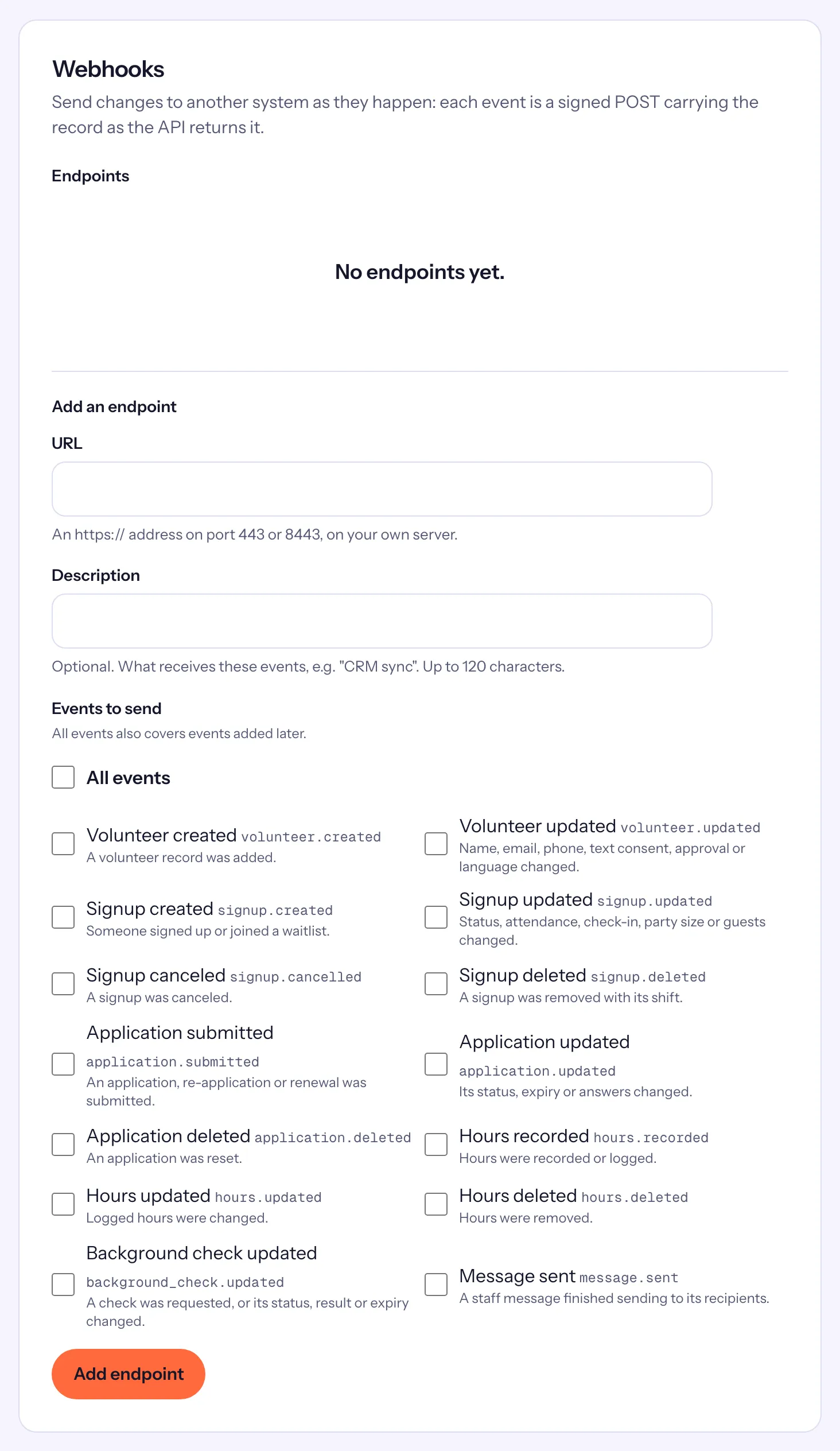
- In Webhooks, under Add an endpoint, enter the URL: "An https:// address on port 443 or 8443, on your own server."
- Optionally, add a Description, such as "CRM sync".
- Under Events to send, tick the events you want, or All events, which "also covers events added later".
- Choose Add endpoint, then copy the Signing secret with Copy secret. It is shown once. Your system uses it to check that each delivery came from Causefolk.
There are 14 events: a volunteer created or updated; a signup created, updated, canceled or deleted; an application submitted, updated or deleted; hours recorded, updated or deleted; a background check updated; and a message sent.
Watching your endpoints
Each endpoint shows its status (Active, Paused or Disabled), its last delivery and its consecutive failures. Open Deliveries to see the last 50, with the response and how long it took, and Redeliver any of them.
- Send test event posts a test delivery and shows the answer at once.
- Edit changes the URL, description or events. Disable stops sending; Enable starts again.
- Rotate secret, then Confirm rotate, makes a new signing secret. "The current secret stops working at once."
- Delete, then Confirm delete, removes the endpoint and its delivery history.
When deliveries fail
A delivery succeeds when your server answers with a 2xx status within 10 seconds. Anything else is a failure, and Causefolk tries again after 1, 5, 30 and 120 minutes; after the fifth failed attempt, the delivery is marked failed.
After 20 failed attempts in a row, the endpoint is paused and every owner gets an email. Fix your server, then choose Resume. Deliveries already waiting go out; events that happened while it was paused are not sent.