Staff roles and programs
What owners, staff, coordinators and viewers can see and do, and how programs decide what a coordinator runs.
Every member of your team has one of four roles. Programs group your opportunities, so a coordinator can run part of your work without seeing the rest. This article is the full picture; to invite someone, see Invite your team.
Where to find it
- Settings → Staff (owners): the members, their roles, invitations and Change role.
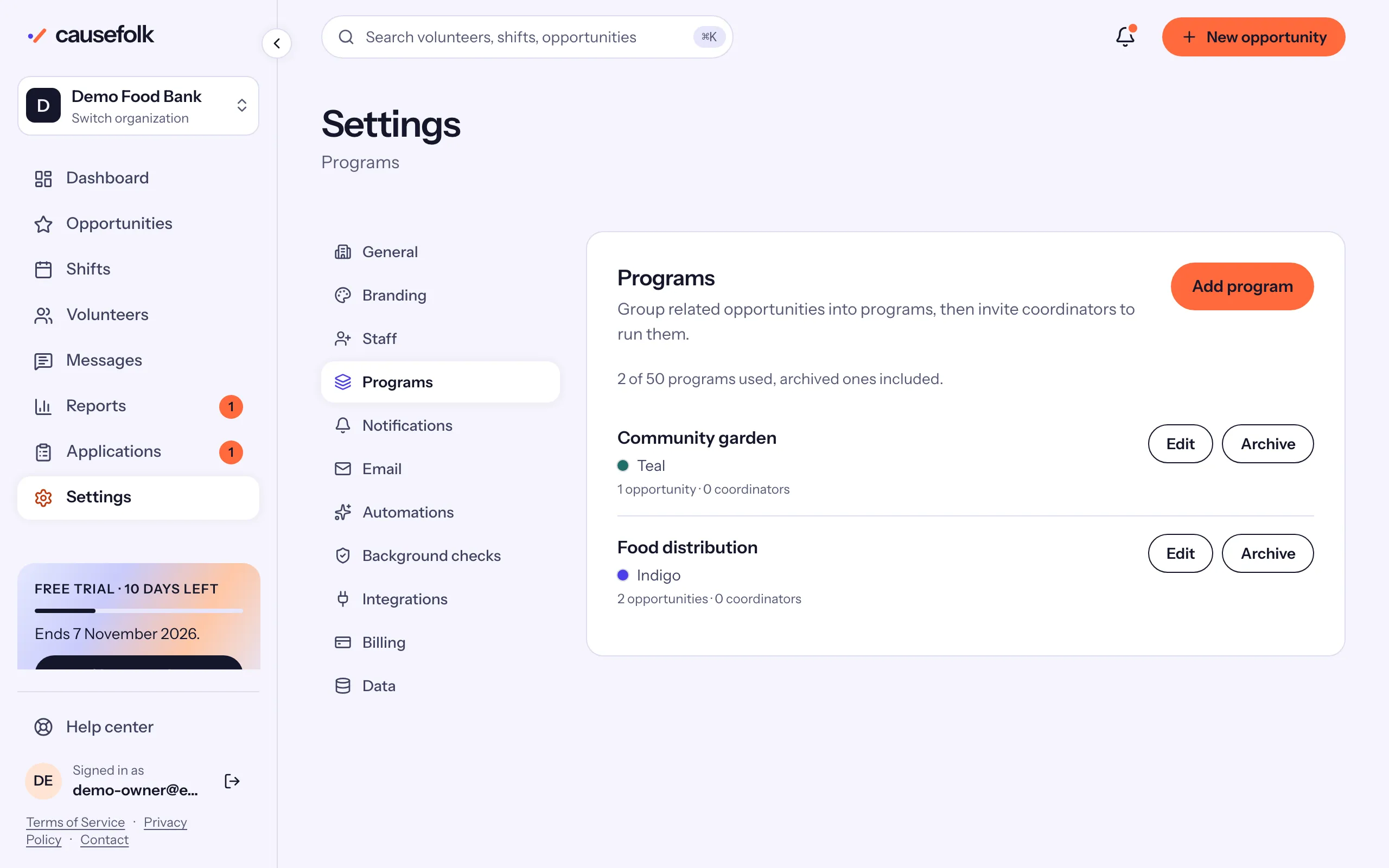
- Settings → Programs (owners and staff): your programs.
What each role can do
| Owner | Staff | Coordinator | Viewer | |
|---|---|---|---|---|
| Opportunities, shifts and rosters | All | All | Their programs | See all, change nothing |
| Create opportunities, choose their program | Yes | Yes | No | No |
| Volunteers | All, with every detail | All, with every detail | Those active in their programs, contact details and hours | See all, change nothing |
| Applications and requirements | Yes | Yes | No | See only |
| Messages to volunteers | Everyone, or any audience | Any audience but everyone | A shift, series or opportunity in their programs | No |
| Reports and CSV exports | All | All | Their programs | All |
| Staff notifications | Yes | Yes | About their programs | None |
| Settings | Every tab | Programs and Notifications; Email, Automations and Integrations read-only | Notifications | Notifications |
| Staff, billing, branding, data | Yes | No | No | No |
The invite form and Change role show the same one-line summaries under What each role can do.
Viewers
Viewers see every page with a note: "You have view-only access, so you can see everything but cannot make changes." Buttons are disabled or hidden. They can still download CSV exports, but not documents volunteers uploaded. A viewer's Settings → Notifications says only "Viewers do not receive staff notifications."
Coordinators
A coordinator runs the opportunities in their programs as staff would: the shifts, rosters, attendance, check-in posters, kiosks, hours to review and messages to those people. Everything else is out of view:
- Lists, calendars, the dashboard and Reports show only their programs. The Programs chips offer just theirs.
- A volunteer appears when they have a confirmed signup or a series membership in one of the coordinator's programs. The record shows contact details, those signups and hours, and the standing of their requirements, but not notes, application answers, tags or messages.
- There is no Applications page. Applications, background checks and certifications never reach a coordinator.
- Anything outside their programs reads: "This is outside the programs you coordinate, so you cannot change it."
Programs
- Open Settings → Programs and choose Add program.
- Enter a Name, a Description (optional) and a Color: Indigo, Orange, Peach, Periwinkle, Teal or Amber, shown as a dot beside the name.
- Choose Create program.
- Put opportunities in it from each opportunity's form, under Program.
Each program shows how many opportunities and coordinators it has. Edit changes its name, description or color. Archive, then Archive program, retires it: "Its opportunities and coordinators keep it, but it can no longer be chosen." Archived programs are listed under Archived programs.
Programs also filter your Opportunities, Shifts, Volunteers and Reports pages with the Programs chips, whatever your role.