Invite your team
Invite owners, staff, coordinators and viewers by email, and use programs to give coordinators just the work they run.
Everyone on your team signs in to the staff app with their own email. The role you give each person decides what they can see and change, and programs let a coordinator run part of your work without the rest.
Where to find it
Settings → Staff for invitations and roles; only owners see it. Settings → Programs for programs; owners and staff see it.
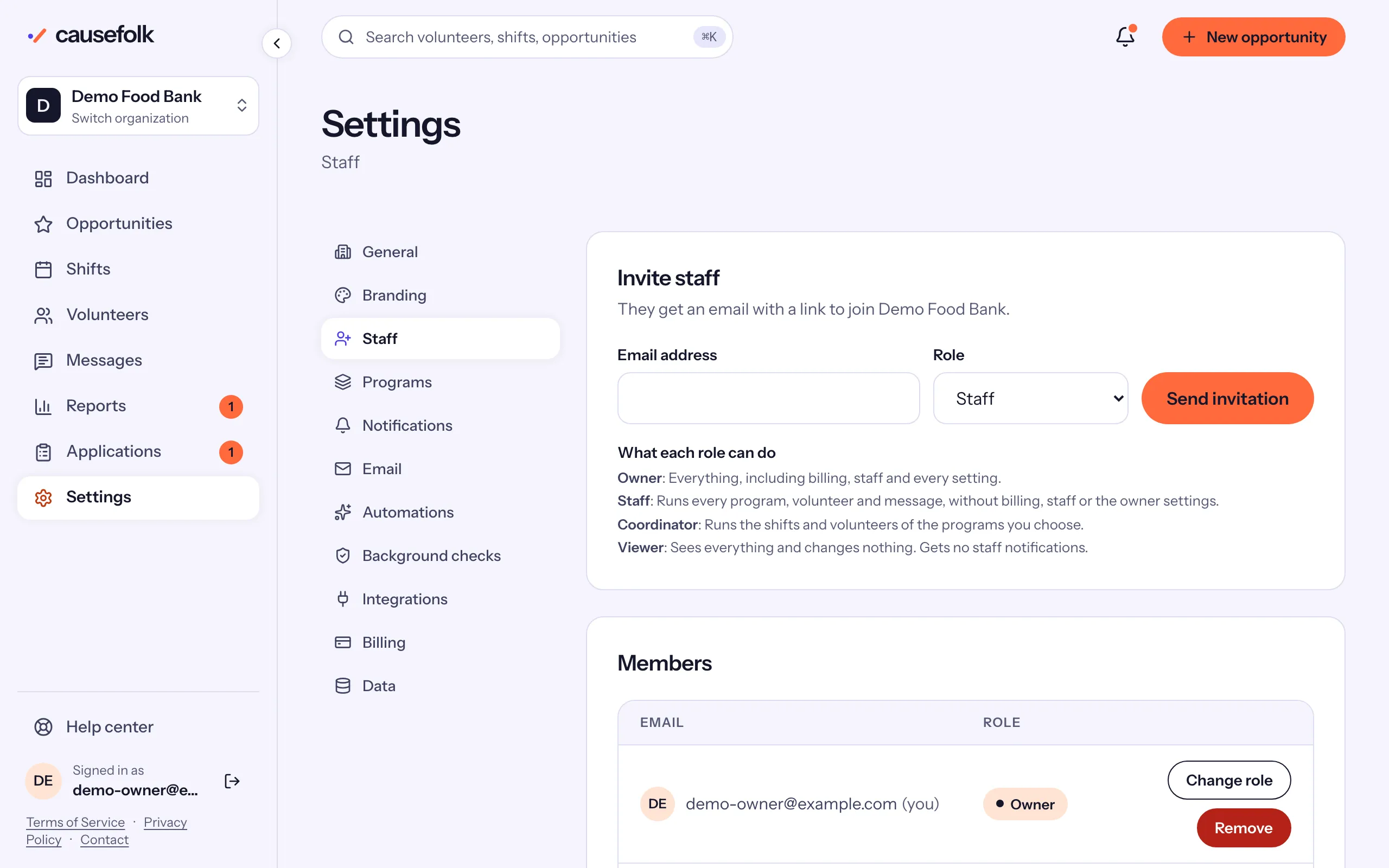
The four roles
| Role | What they can do |
|---|---|
| Owner | Everything, including billing, staff and every setting. |
| Staff | Runs every program, volunteer and message, without billing, staff or the owner settings. |
| Coordinator | Runs the shifts and volunteers of the programs you choose. |
| Viewer | Sees everything and changes nothing. Gets no staff notifications. |
The invite form shows the same lines under What each role can do.
Invite someone
- Open Settings, then Staff.
- In Invite staff, enter their Email address and choose a Role.
- For a Coordinator, tick the Programs they run. "Choose the programs this coordinator runs. Pick at least one."
- Choose Send invitation.
They get an email inviting them to join your organization. To accept, they sign in to the staff app with that same email address: the email's Sign in button takes them there, and there is no password to set. Until then the invitation waits under Pending invitations, where you can Resend it or Revoke it.
Change a role or remove someone
In Members, choose Change role beside a person, pick the New role and choose Save role, then Confirm role change. "Their access changes as soon as you confirm." To take someone off your team, choose Remove, then Confirm remove.
Programs for coordinators
A program groups related opportunities, such as "Youth programs" or "Food distribution". A coordinator sees and runs only the opportunities in their programs: those opportunities' shifts and rosters, and the volunteers who take part in them.
- Open Settings → Programs and choose Add program.
- Enter a Name, a Description (optional) and a Color, then Create program.
- Put opportunities in the program: on each opportunity's form, choose it under Program and save.
- Invite a coordinator with that program, or change a member's role to Coordinator and pick it.