Opportunities and causes
What an opportunity is, how drafts and published ones differ, and why some screens call it a cause.
Everything volunteers sign up for starts with an opportunity: a kind of work, like "Mobile pantry delivery" or "Community garden mornings". An opportunity holds the description, the location, any requirements and the shifts people choose from.
Where to find it
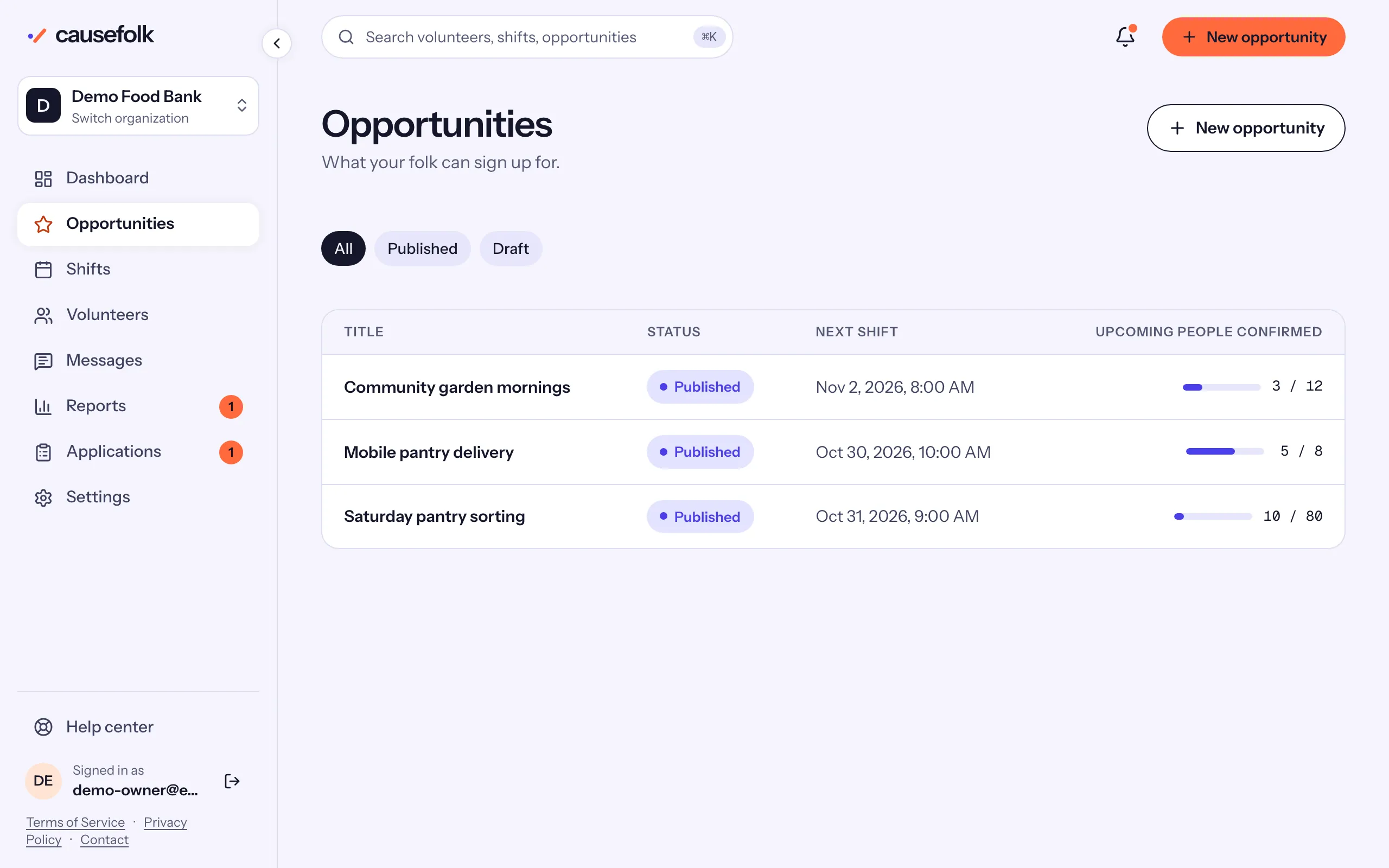
Opportunities in the sidebar lists them all. Each title opens the opportunity's page.
Opportunity or cause?
They are the same thing. Most of the staff app says "opportunity". When you write to volunteers under Messages, the audience choice says "cause" (for example Volunteers of a cause): it means everyone confirmed or waitlisted on that opportunity's shifts, plus the members of its series.
The list
- The chips All, Published and Draft filter the list.
- Each row shows the Title, the Status, the Next shift and Upcoming people confirmed. Under the title you may see "Application" or "Background check" when signing up needs one.
- If you use programs, the program chips narrow the list to one program.
The opportunity's page
The page gathers everything about one opportunity:
- Overview: the location and description.
- Upcoming shifts, with Add a shift, and Recurring series, with Add a series.
- Status: Publish or Unpublish.
- Requirements: the waivers, trainings and certifications volunteers complete first.
- Check-in: the QR poster and the check-in location.
- Image: a picture shown to volunteers, with Upload image.
- Message volunteers and Edit at the top.
Change an opportunity
- Open the opportunity and choose Edit.
- Change the Details (Title, Description, Location, Program) or the Requirements:
- Requires an approved application: volunteers must apply and be approved before they can sign up.
- Requires a cleared background check: shown when background checks are available; volunteers can then sign up only after a cleared Checkr check.
- Volunteer-logged hours: Organization default, Always review, Approve automatically or Not allowed: how hours that volunteers log themselves are handled for this opportunity.
- Requirements for this opportunity: tick the waivers, trainings or certifications that apply (owners and staff).
- Choose Save changes.