Shifts, capacity and the roster
Add and change shifts, set how many people each one needs, and see who is coming on the roster.
A shift is one date and time of an opportunity, with a capacity: the number of people it needs. Each shift has its own page with the roster, the list of who is confirmed and who is waiting.
Where to find it
- Shifts in the sidebar lists every shift, grouped by day, under Upcoming and Past. It also has the Week, Month and Coverage views.
- On an opportunity's page, Upcoming shifts lists that opportunity's shifts, with Add a shift.
- Choose a shift's time to open its page.
How capacity counts
Capacity counts people, not signups. A volunteer who brings two guests takes three spots. Step through how a shift fills:
Add a shift
- On the opportunity's page, choose Add a shift.
- Enter the Date, Start time and End time, in your organization's time zone.
- Enter the Capacity, and an optional Role (optional) label.
- Choose Add shift.
Change a shift
On the shift's page, the Shift details card holds two separate saves:
- Change the Date, Start time, End time or label and choose Save shift. "Volunteers on this shift are emailed if its date or times change."
- Change the Capacity and choose Save capacity.
To call a shift off, choose Cancel this shift at the bottom of the page, then confirm. Every signup on it is canceled and those volunteers are emailed. This cannot be undone.
The roster
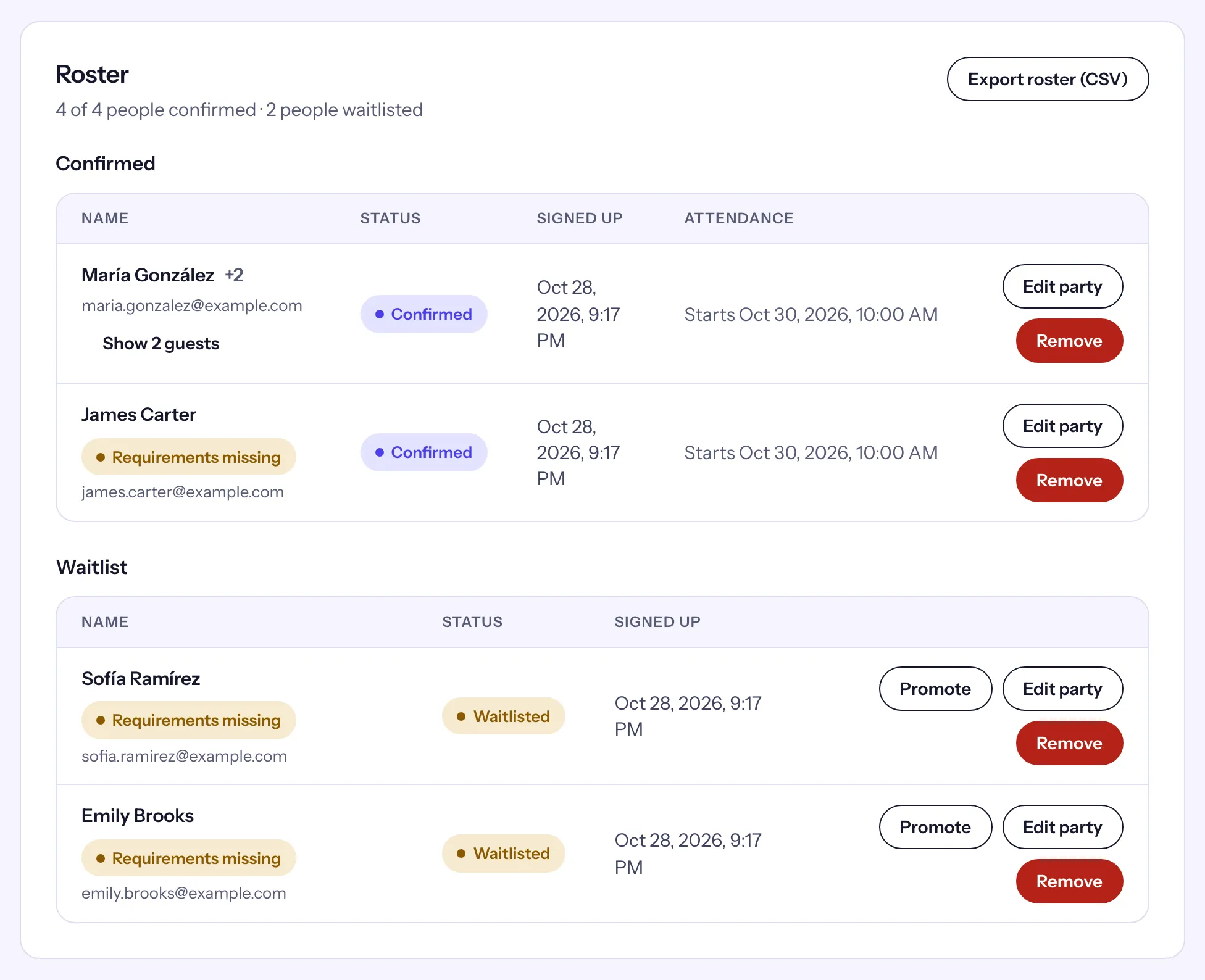
The Roster card says how many people are confirmed out of the capacity, and how many are waitlisted. Below it:
- Confirmed: each person with their email and phone, when they signed up and, from 60 minutes before the start, their attendance. A group leader shows "+2" for two guests, with Show 2 guests to list them.
- Waitlist: people waiting for a spot, in order, with Promote to confirm one now.
- Remove takes someone off the shift (then Confirm remove).
- Export roster (CSV) downloads the roster, one row per person.
- Message these people, at the top of the page, writes to everyone on the shift.
To add someone yourself, use Add a volunteer under the roster: their Name, Email address and Phone (optional), then Add to shift. "Volunteers added here are confirmed even when the shift is full, and are emailed."