Recurring series
Schedule a shift that repeats weekly or monthly, let volunteers join every date at once, and change or end the series.
A series creates the same shift on a pattern, such as every Saturday from 9:00 to 12:00 or the first Tuesday of each month. Volunteers can join a whole series once and be signed up for every date, including dates added later.
Where to find it
On an opportunity's page, the Recurring series card: Add a series creates one, and Edit series on a row opens it with its members.
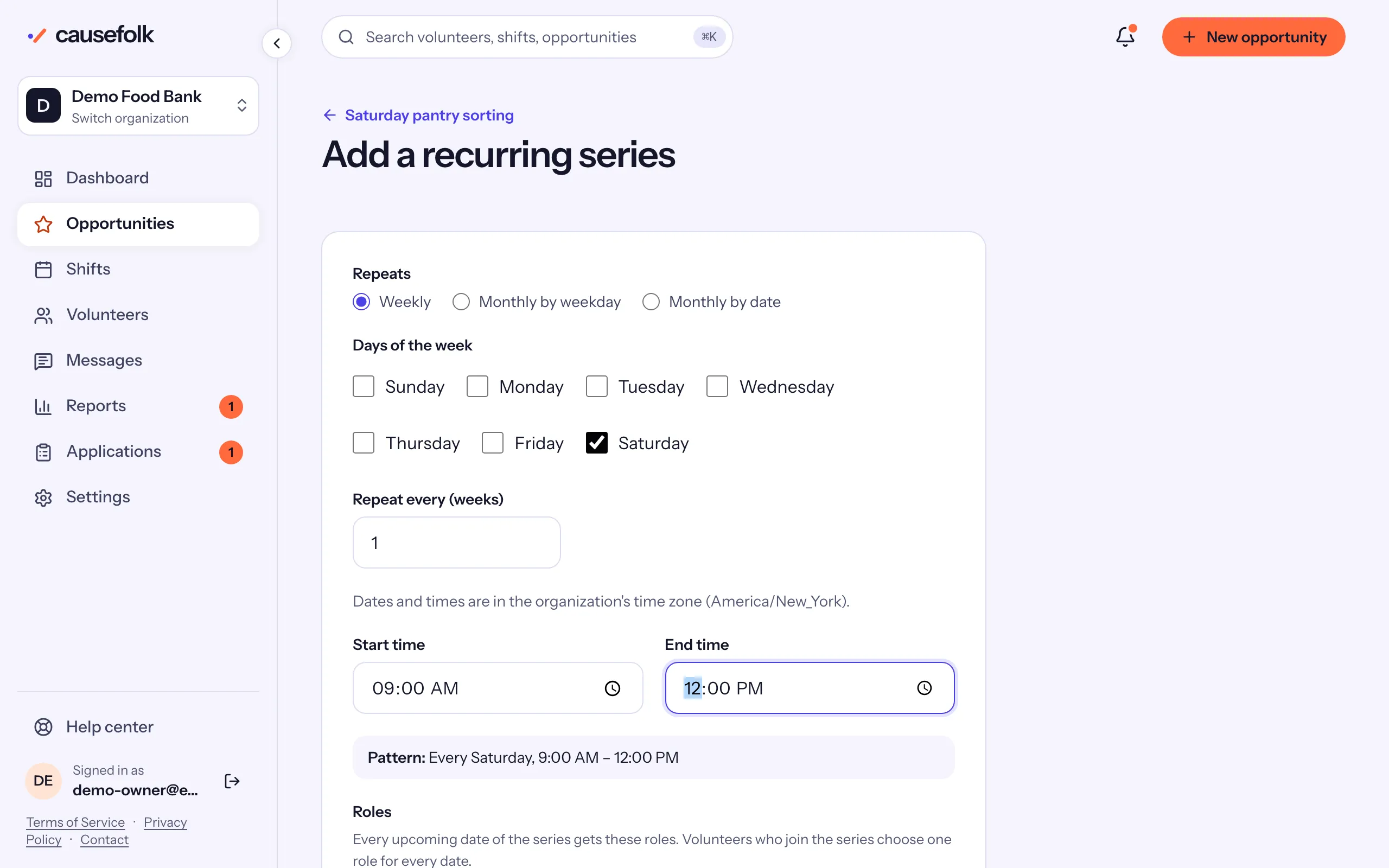
Add a series
- On the opportunity's page, choose Add a series.
- Under Repeats, choose the pattern:
- Weekly: tick the Days of the week and set Repeat every (weeks); 2 means every other week.
- Monthly by weekday: choose the Day of the week and the Weeks of the month (1st, 2nd, 3rd, 4th or Last), and Repeat every (months).
- Monthly by date: enter the Day of the month and Repeat every (months).
- Enter the Start time and End time, then the Capacity per shift and an optional Role (optional), or split each date into roles.
- Choose the First date and, if the series stops, a Last date (optional).
- Check the pattern in words under the fields, then choose Add series.
Each date becomes an ordinary shift with its own page and roster.
Change or end a series
On the series page (Edit series):
- Change the times, the capacity or the role and choose Save series. "Series saved. Its upcoming shifts that were not edited individually now match."
- Under End series, choose a Last date and End series. Shifts after that date are removed; those with volunteers signed up are canceled instead, and the volunteers are emailed.
If you change one date on its own shift page, that date shows Edited individually and later series edits leave it alone.
Series members
Volunteers join from your volunteer site with Join the series. The Members card lists them. "Members are signed up for every upcoming date of the series, and for new dates as they are added."
- Add member by hand takes a Name, Email address and Phone (optional), with Add them to the waitlist on full dates; choose Add member.
- Remove, then Confirm remove, takes someone out. Also cancel their future dates is ticked by default, and they get one email saying they were removed.
- Message members on the opportunity's series row writes to everyone in it.