The calendar and printing the schedule
See your shifts by week or month, find the ones that need people, and print a week's schedule with names.
The Shifts page has four views of the same shifts: a list, a week, a month and a coverage view that puts the shifts needing people first. From the week you can print a clean schedule for the door or the noticeboard.
Where to find it
Shifts in the sidebar, then the tabs List, Week, Month and Coverage. The dashboard's "shifts need people this week" notice opens the coverage view too.
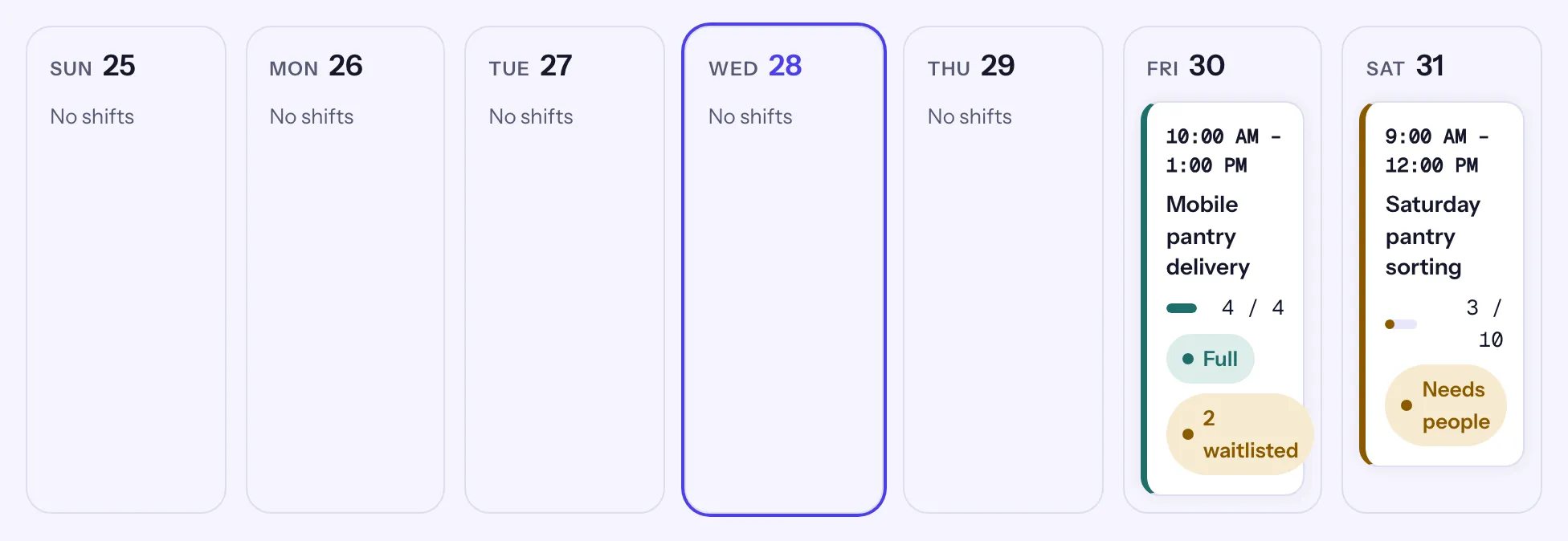
Find your way around
- Choose Week or Month.
- Move with Previous week and Next week (or Previous month and Next month), and Today to come back.
- Narrow the view with Opportunity, and turn on Show canceled to see canceled shifts, which are hidden by default.
- Use the Coverage chips, All, Needs people or Full, to see only the shifts that need attention or the ones that are full.
- Choose a shift's time to open its page and roster.
In the month view, a day shows up to 3 shifts and a "+N more" link for the rest, which opens that week. Choosing a day number opens its week as well.
Coverage at a glance
Each shift carries a word, and a color, for how full it is:
| Word | Meaning |
|---|---|
| Empty | Nobody confirmed yet. |
| Needs people | Less than half full. |
| Filling | Half full or more, with spots left. |
| Full | Every spot taken. |
The Coverage view lists the shifts in the next 7, 14 or 30 days (14 by default), those that need people first, with "N of M shifts need people in the next 14 days" at the top. Each row has Message and Add volunteer, so you can fill a gap on the spot.
Print the week
- In the Week view, go to the week you want and, if you like, choose one Opportunity.
- Choose Print week.
- On the schedule, choose Print.
The printout has one section per day. Each shift shows its times, the opportunity and role, "4 of 6 people", and the names of the people confirmed in alphabetical order; a group leader is followed by "+2" for their guests. A shift with nobody yet says "Nobody confirmed yet." Back to the week returns to the calendar.