Group signups
Let one volunteer sign up a family, a team or friends in one go, with every person counted against the capacity.
For staff
A group signup lets one person bring others: a parent with two teenagers, a church group or a team from work. The person who signs up is the leader and the contact for the whole party. Their guests do not need their own signups.
Where to find it
- Turn groups on or off: Settings → General, Largest party (people) (owners).
- Volunteers: the Bringing others? field on the signup form, under Your details.
- Staff: the shift's roster, where a leader shows "+2" for two guests.
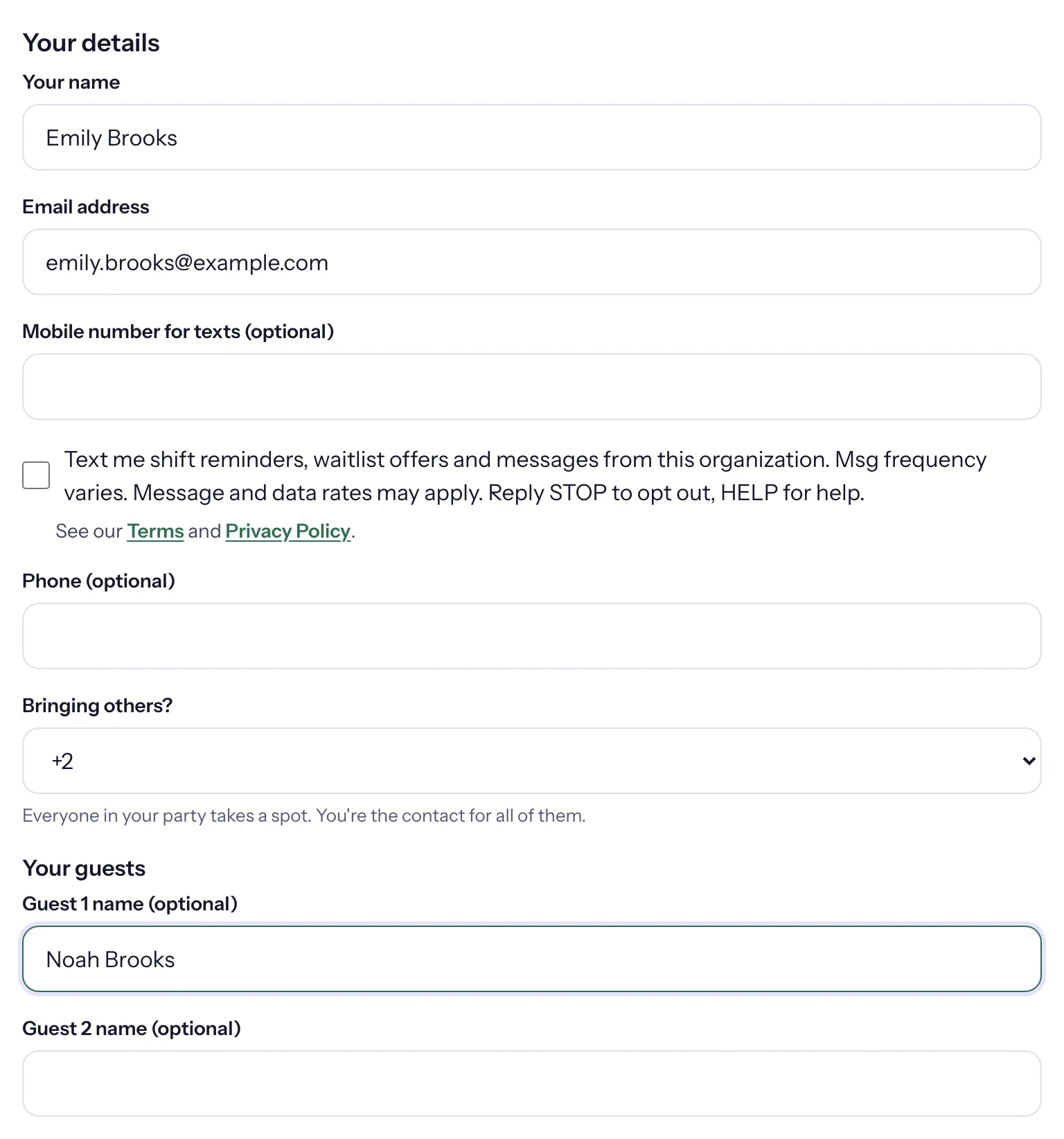
How a volunteer signs up a group
- On your volunteer site or embed, they tick the shifts they want and fill in Your details.
- Under Bringing others? they choose Just me or how many others, from +1 up to your largest party. "Everyone in your party takes a spot. You're the contact for all of them."
- They can type each guest's name in Guest 1 name (optional) and the next fields, or leave them blank.
- They send the form. The result says, for example, "You're signed up for 3 people."
Later, they can change the size or the names with Edit party on My shifts, until the shift starts. Series members bring the same party to every date.
On the roster
- A leader's row shows the guests as "+2", with Show 2 guests to list them by name.
- The Roster card counts people: "4 of 4 people confirmed".
- Edit party on a row changes the party size and guest names. "Staff can set up to 50 people, even above the capacity."
- Each guest has their own attendance mark. Their hours count in your totals and appear on the leader's record, with the guest's name.
- Export roster (CSV) lists one row per person, guests included.