Shift roles
Split a shift into named roles, each with its own spots, so volunteers choose the job they will do.
Some shifts need different people for different jobs: two greeters and six planters, or one driver and three loaders. Roles split a shift into those jobs. Each role has its own spots, volunteers choose one when they sign up, and the roster shows who is doing what.
Where to find it
- New shift: the Roles part of the Add a shift form.
- Existing shift: the Shift details card on the shift's page, with Split into roles.
- Series: the Roles part of the Add a recurring series form, or the Roles card on the series page.
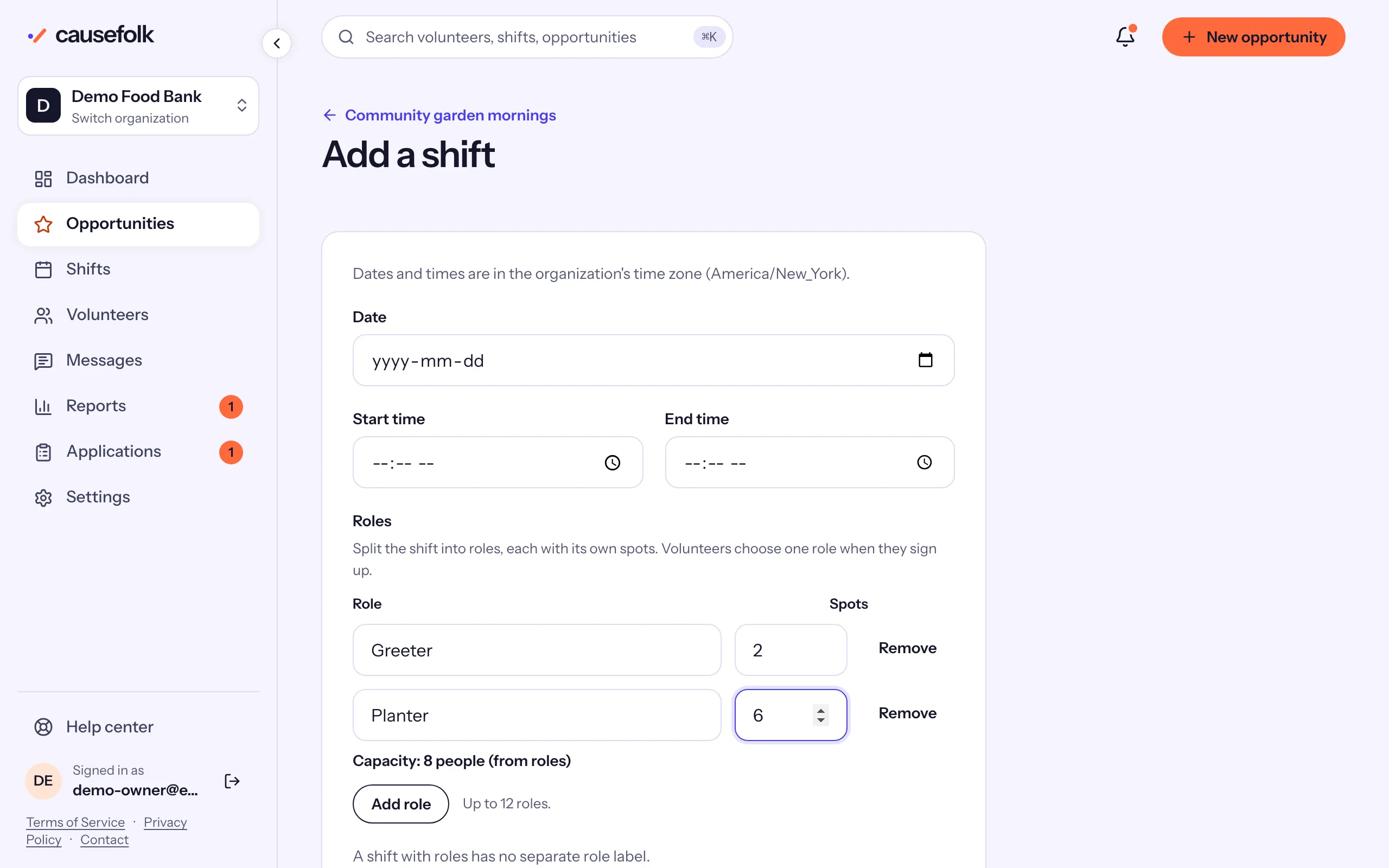
Add roles to a shift
- On a new shift, choose Add role. On an existing one, choose Split into roles: it starts with one role holding the current label (or "Volunteer") and capacity.
- For each role, fill in Role (the name) and Spots. Choose Add role for the next one, or Remove to drop one.
- The capacity becomes the total: "Capacity: 8 people (from roles)".
- If people are already signed up, choose where they go under Put current volunteers in.
- Choose Add shift on a new shift, or Save roles on an existing one.
On a series, the roles apply to every upcoming date, and volunteers who join the series choose one role for every date.
What volunteers see
On the signup form, a shift with roles lists each role with its spots, such as "Greeter · 2 spots left" or "Planter · Full". They tick one role per shift. A full role can still be chosen to join that role's waitlist. Their confirmation email names the role, and they can use Change role on My shifts to move to another role with room before the shift.
On the shift's page
- The Roles card shows one bar per role, such as "Greeter · 2/4", with how many are waitlisted.
- The roster gains a Role column and the chips Filter by role, starting with All roles.
- Change role on a row opens New role; choose Save role.
- Add a volunteer asks for a Role too.