Organization settings
Set your organization's name, time zone, volunteer language, waitlist hold, largest party and self check-in in one place.
The general settings decide how your whole organization behaves: which time zone shift times use, which language new volunteers see, how long a freed spot is held for someone on the waitlist and whether volunteers can bring others.
Where to find it
Settings → General, in the staff app. Only owners see this page; the other settings sections each have their own article.
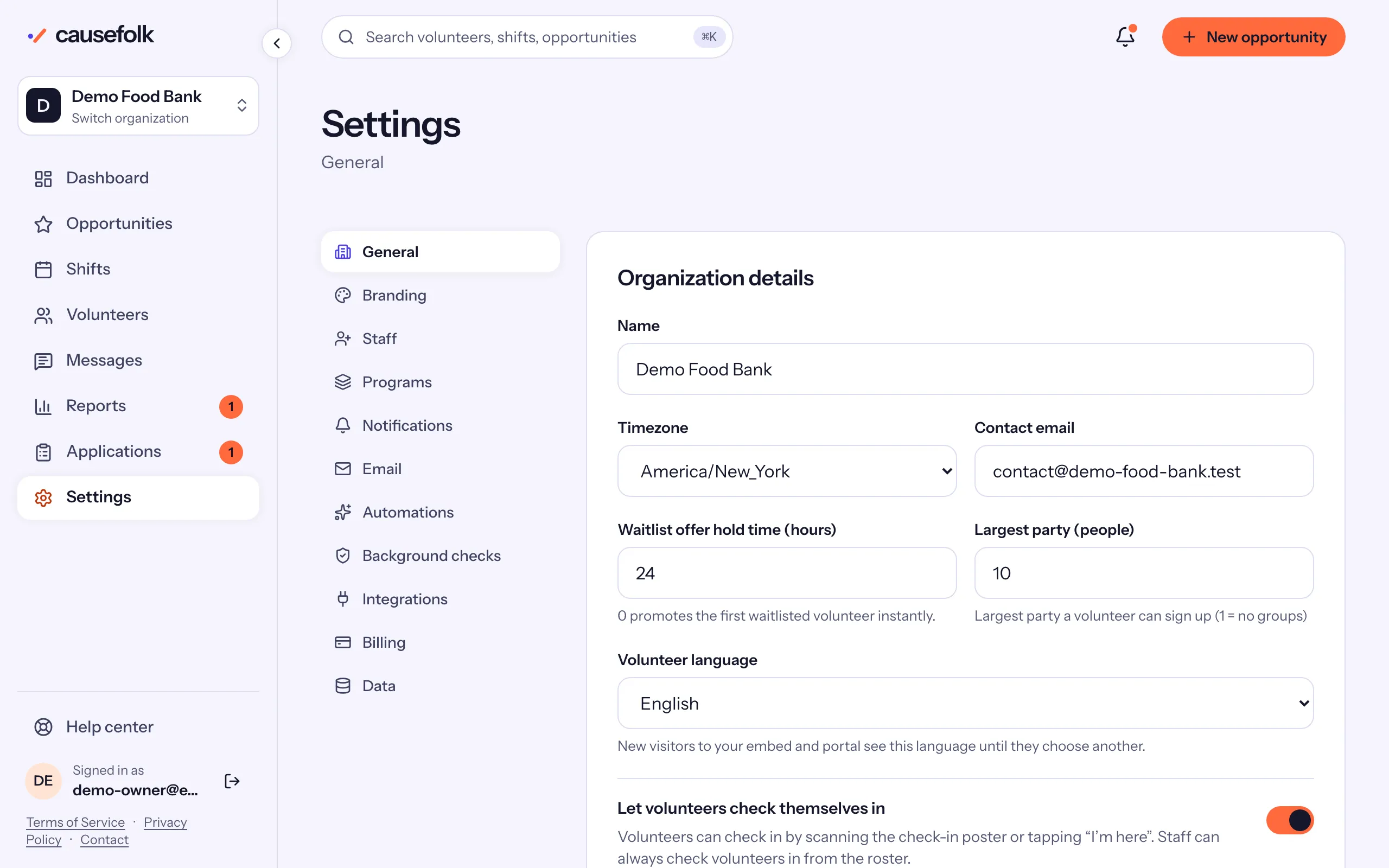
Change your settings
- Open Settings, then General.
- In the Organization details card, change what you need:
- Name: shown on your volunteer site, in emails and in the staff app.
- Timezone: every shift date and time is entered and shown in this zone, for your team and your volunteers.
- Contact email: the reply-to address on the emails volunteers get from you.
- Waitlist offer hold time (hours): how long a freed spot is held for the volunteer it is offered to. "0 promotes the first waitlisted volunteer instantly."
- Largest party (people): the most people one volunteer can sign up, themselves included. 1 means no groups.
- Volunteer language: English or Spanish (Español). "New visitors to your embed and portal see this language until they choose another."
- Let volunteers check themselves in: volunteers can check in by scanning the check-in poster or tapping "I'm here". Staff can always check volunteers in from the roster.
- Choose Save settings. You see "Settings saved."
The same card holds a few more settings, each explained where it is used: Let people without a signup check in at a kiosk, the age under which waivers need a guardian's signature, Let volunteers log their own hours with its review choice, Value of a volunteer hour for Reports, and the Leaderboard.
Good to know
Also on this page
Beside the settings, the same page shows Your volunteer site with its link, and the Embed snippet for your website. They are covered in Your volunteer site and the embed.