Publish your first opportunity
Create an opportunity, give it a shift people can sign up for, and publish it to your volunteer site.
An opportunity is a kind of work volunteers can do, like "Saturday pantry sorting". Shifts are the dates and times they sign up for. Volunteers see an opportunity once it is published.
Where to find it
Opportunities → New opportunity, or the New opportunity button at the top of every page of the staff app. Owners and staff can create opportunities.
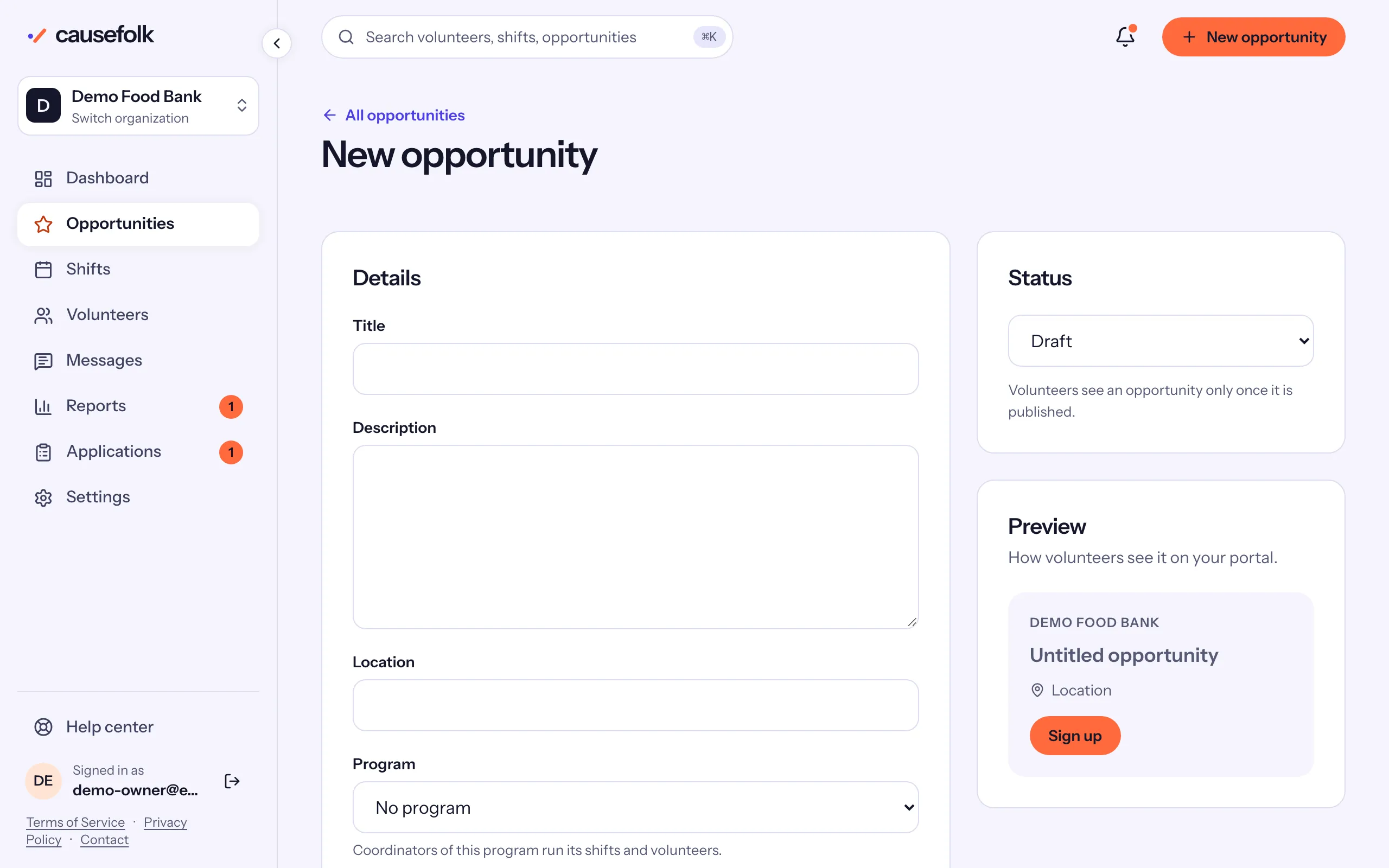
Create the opportunity
- Choose New opportunity.
- In Details, enter the Title and, if you like, a Description and a Location. If you use programs, choose one under Program.
- In Requirements, leave everything off for an opportunity anyone can join. Turn on Requires an approved application only if volunteers must apply and be approved first.
- In Status, leave Draft while you set things up, or choose Published to make it visible right away. The Preview card shows how it will look on your volunteer site.
- Choose Create opportunity. You land on the opportunity's page.
Add a shift
- On the opportunity's page, in Upcoming shifts, choose Add a shift.
- Fill in the Date, Start time and End time. They are in your organization's time zone, shown above the fields.
- Enter the Capacity: how many people the shift needs. "Capacity counts people: a volunteer bringing 3 others takes 4 spots."
- Optionally add a Role (optional) label, such as "Driver", or split the shift into roles with their own spots.
- Choose Add shift.
For a shift that happens every week or every month, choose Add a series in Recurring series instead. See Recurring series.
Publish it
If you saved a draft, go back to the opportunity's page and choose Publish in the Status card. To hide it again later, choose Unpublish. You can also add a picture in the Image card with Upload image.
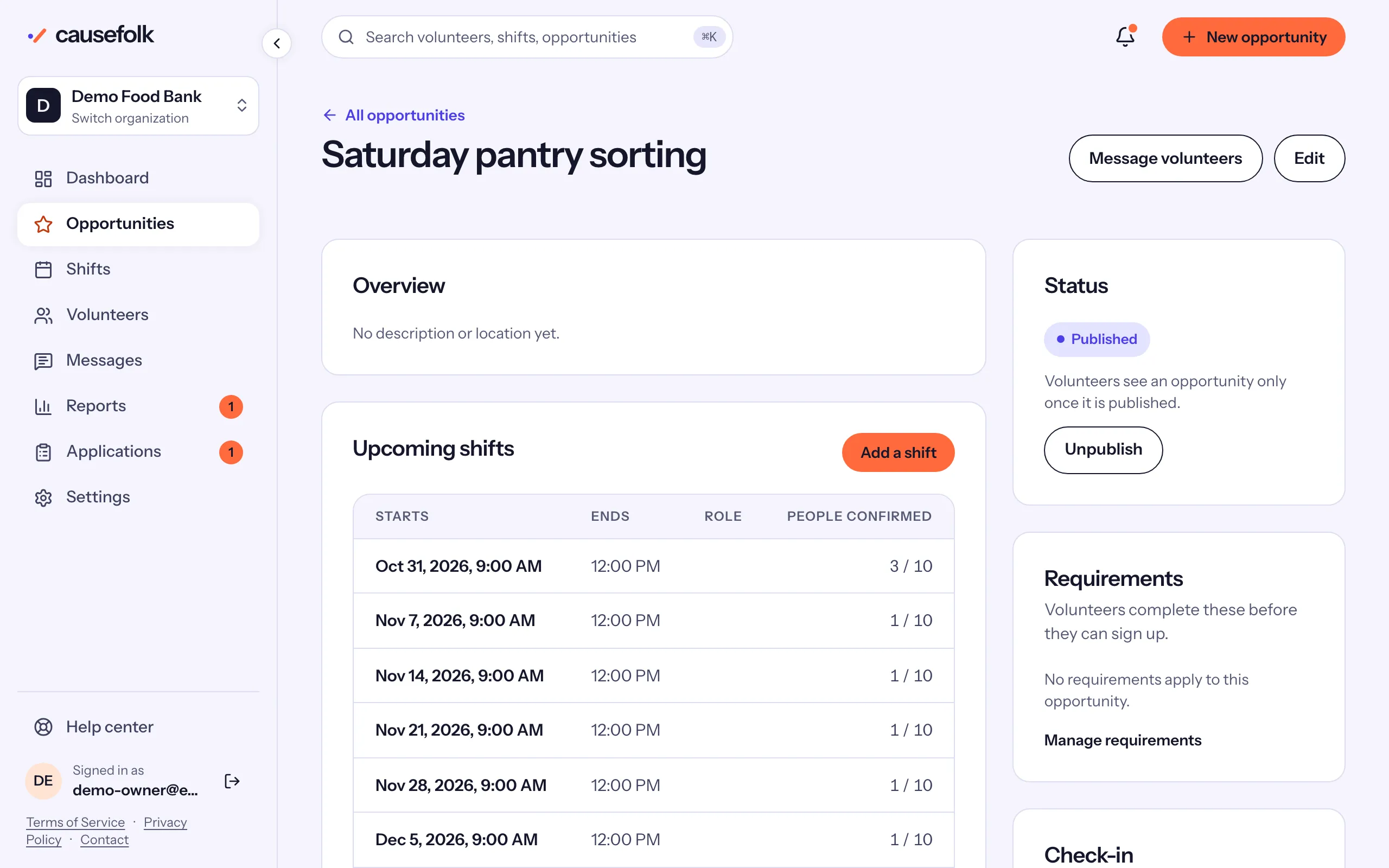
Your opportunity now appears on your volunteer site and in your embed, with its shifts and how many spots are left.