CRM connections
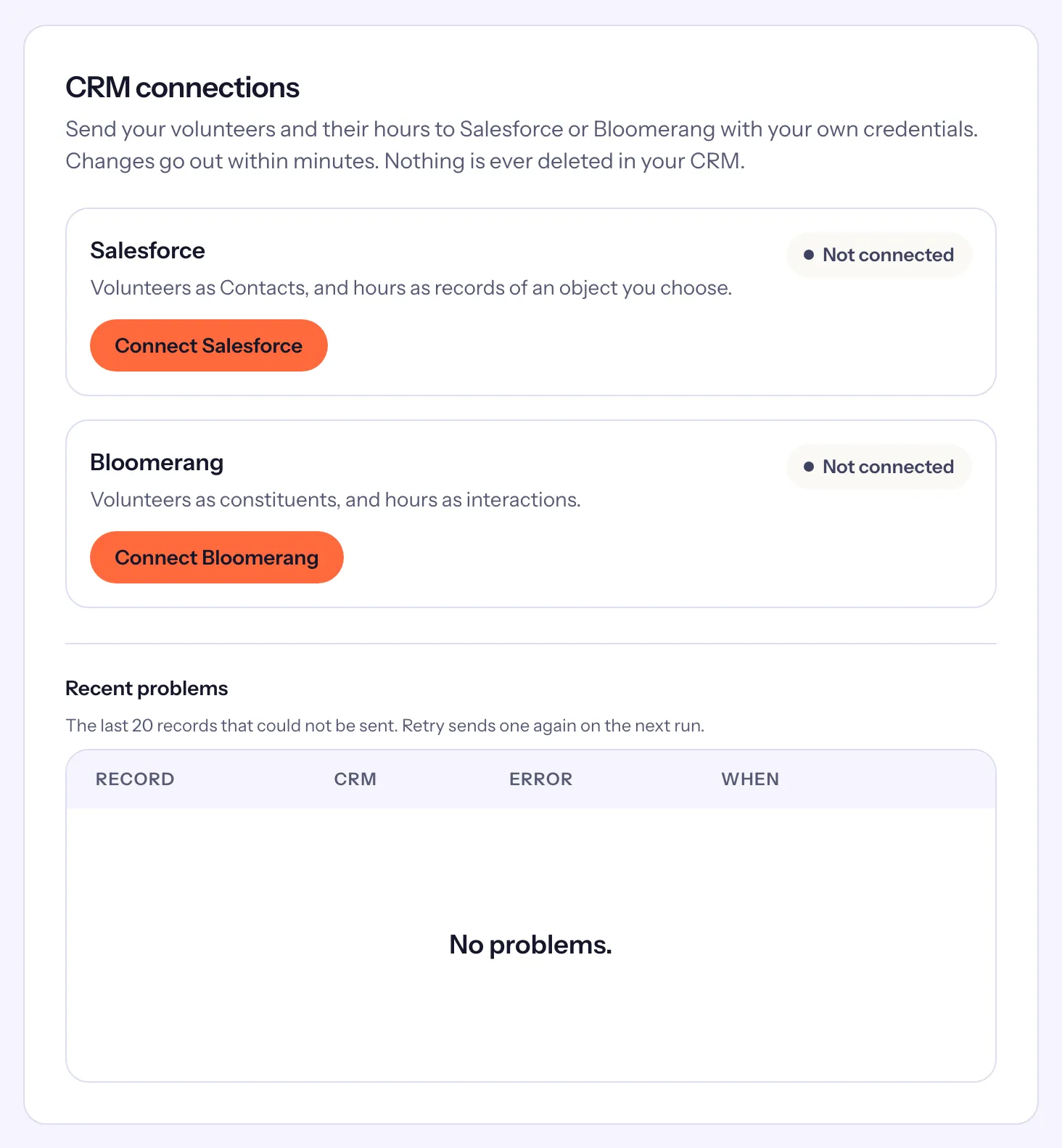
Send your volunteers and their hours to Salesforce or Bloomerang with your own credentials, and see what was sent, what failed and why.
If your organization keeps its supporters in Salesforce or Bloomerang, Causefolk can keep them up to date: each volunteer becomes a contact (a constituent in Bloomerang), and their hours follow. "Changes go out within minutes. Nothing is ever deleted in your CRM."
Where to find it
Settings → Integrations, the CRM connections card. Owners connect, change and remove connections. Staff can read the card: "Only owners can connect, change or remove a CRM connection."
Connect
You use your own CRM account and credentials. Your CRM administrator prepares them first.
Salesforce sends "Volunteers as Contacts, and hours as records of an object you choose."
- Choose Connect Salesforce.
- Enter your My Domain URL (such as
https://acme.my.salesforce.com), the Client id and the Client secret of the app your administrator set up. - Enter the Contact object (usually Contact) and the External id field that holds the Causefolk id. Optionally, fields for the status, total hours and last volunteered date.
- Optionally, an Hours object with its fields, to send hours. Leave it blank to send volunteers only.
- Choose Connect.
Bloomerang sends "Volunteers as constituents, and hours as interactions."
- Choose Connect Bloomerang.
- Paste a private API key from Bloomerang: in Bloomerang, the profile icon → My Profile → API Keys 2.0, a private key generated by a user who can edit constituents and interactions.
- Choose how to send Hours: As interactions, with the Interaction purpose and Interaction channel, or Do not send hours. Optionally, custom field ids for the Causefolk id, total hours and last volunteered date.
- Choose Connect.
Then choose Test connection to check the credentials, and Sync all, then Confirm sync, to send everyone already eligible.
What is sent
- Who: volunteers who are not archived and have hours, a confirmed signup or an approved application. People who only filled in a form are not sent.
- A volunteer: first and last name, email, phone and the Causefolk id, plus the status, total hours and last volunteered date when you mapped those fields.
- Hours: each entry's date, hours, opportunity and source (Attendance, Manual entry or Self-reported). Guests' hours stay in Causefolk.
- Never: addresses, emergency contacts, dates of birth, notes, tags, skills, availability or text consent.
Matching. Before creating a contact, Causefolk looks for one with the same email. If it finds exactly one, it links to it and fills Causefolk's own fields, and the name, email and phone only where yours are empty. After that it never overwrites them, and the volunteer's record in Causefolk says "Contact details in Salesforce are not overwritten." When several contacts match, that volunteer is not sent; it shows under Recent problems.
Sync all queues every eligible volunteer and their hours from the last 365 days; unchanged records are skipped. The card shows progress, such as "1,240 of 12,000 synced".
Watching the connection
The card shows the connection's state (Connected, Paused, Needs attention), when it last sent and what is waiting. Recent problems lists the last 20 records that could not be sent, with the reason and Retry.
When the CRM can't be reached or is busy, a record is tried again after 1, 5, 30 and 120 minutes, then marked failed. A record the CRM refuses, or one that matches several contacts, fails at once; fix it and choose Retry. After 20 failures in a row caused by the CRM itself (unreachable, rate limited, a missing field), the connection shows Needs attention and every owner gets an email. If the CRM refuses your credentials, it shows Needs attention at once. Fix the cause with Edit and Test connection, then choose Resume: the waiting changes go out.