Status, tags and notes
Mark volunteers active, inactive or archived, label them with tags and keep notes only your team can read.
Status, tags and notes are your team's own information about a volunteer. Volunteers never see them. All three live on the volunteer's record, in the side column.
Where to find it
Open Volunteers, choose a name, and look at the About and Notes cards.
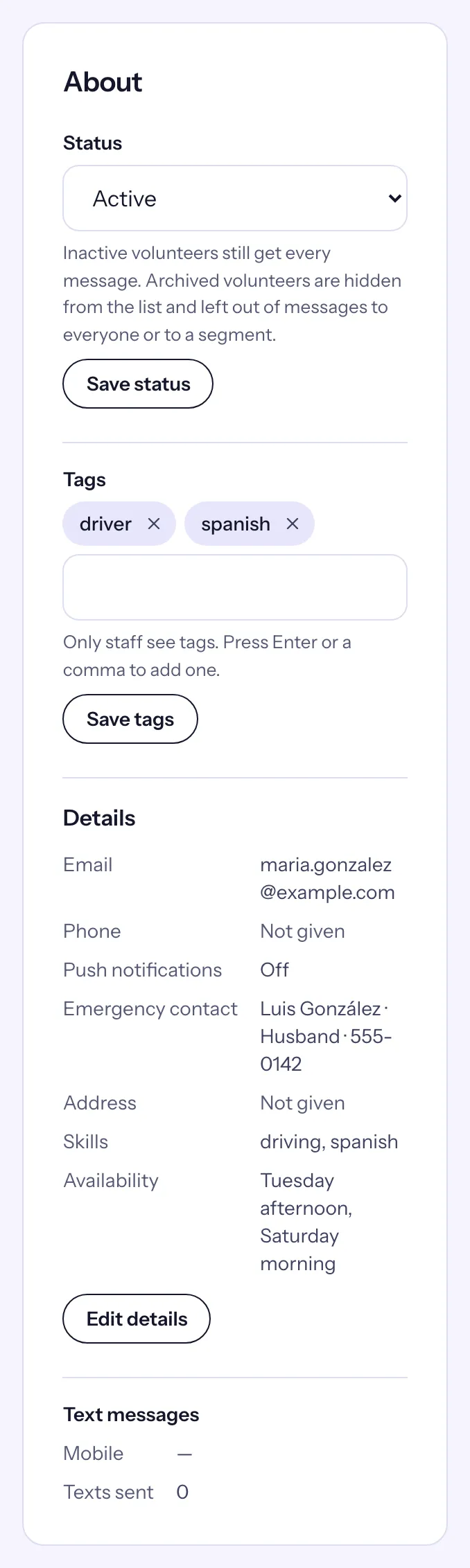
Status
Every volunteer is Active until you change it.
- On the About card, choose a Status: Active, Inactive or Archived.
- Choose Save status.
The card then says when it changed and who changed it ("Changed Oct 24, 2026 by ana@example.org").
| Status | What changes |
|---|---|
| Active | Nothing: shown in the list and reached by every message. |
| Inactive | A label only. Hidden from the default list (use the Inactive chip), but still gets every message, including messages to everyone and to a segment saved without a status. |
| Archived | Hidden from the default list and from the people you can pick when you write a message. Left out of messages to everyone and to a segment. Still reached by messages to a shift, a series or an opportunity they are on, so people on site still hear about changes. |
Archiving ends nothing: the volunteer keeps their signups and series, and reports and hours exports count them as before.
Tags
Tags are short labels such as "driver", "spanish" or "youth", for finding people later.
- On the About card, type a tag in Tags and press Enter or a comma. Suggestions come from the tags your organization already uses.
- Remove one with the cross on its chip.
- Choose Save tags.
Tags show beside the name in the Volunteers list, and the Tags filter finds everyone with all the tags you give it. See Search, filters and saved segments.
Notes
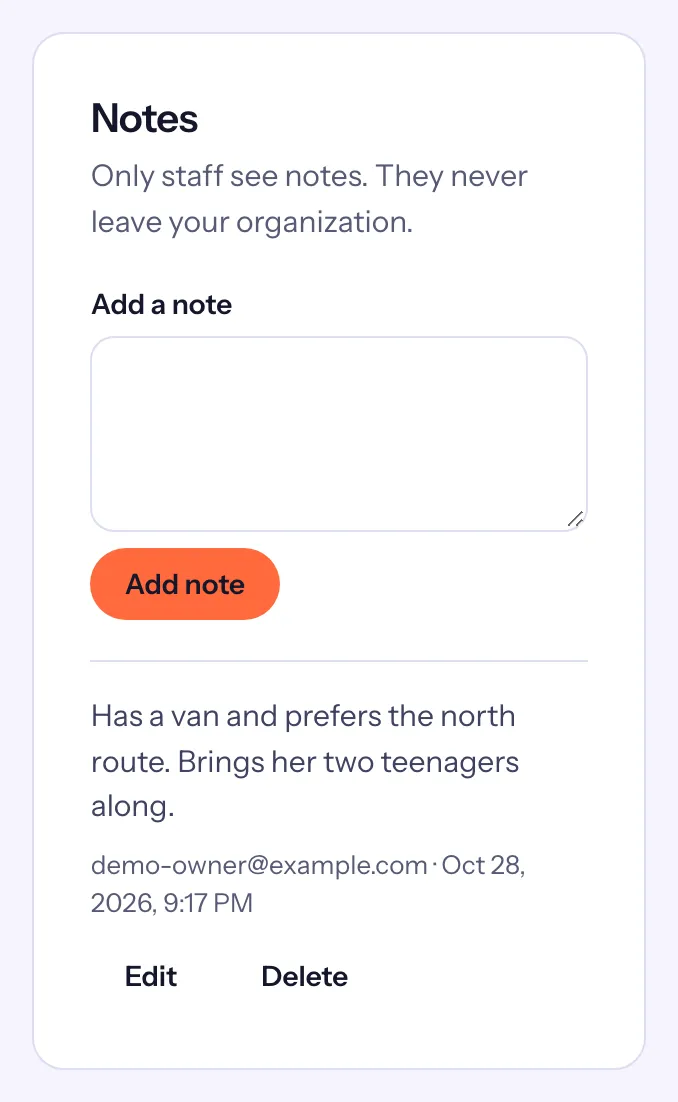
- On the Notes card, write in Add a note.
- Choose Add note.
Notes are listed newest first, each with its author's email and the date. To change your own note, choose Edit, change it and choose Save note. To remove a note, choose Delete, then Delete note to confirm.