Search, filters and saved segments
Find volunteers by name, email, phone, tags, skills, availability and more, and save a filter as a segment to message or report on.
The Volunteers list is a filter you shape: search, status chips and filters narrow it, and a filter you use often can be saved as a segment, reused in one click, in messages and in reports.
Where to find it
Volunteers in the sidebar. From the top: your saved segments, the status chips, the filters, then the count ("3 of 12 volunteers") and the table.
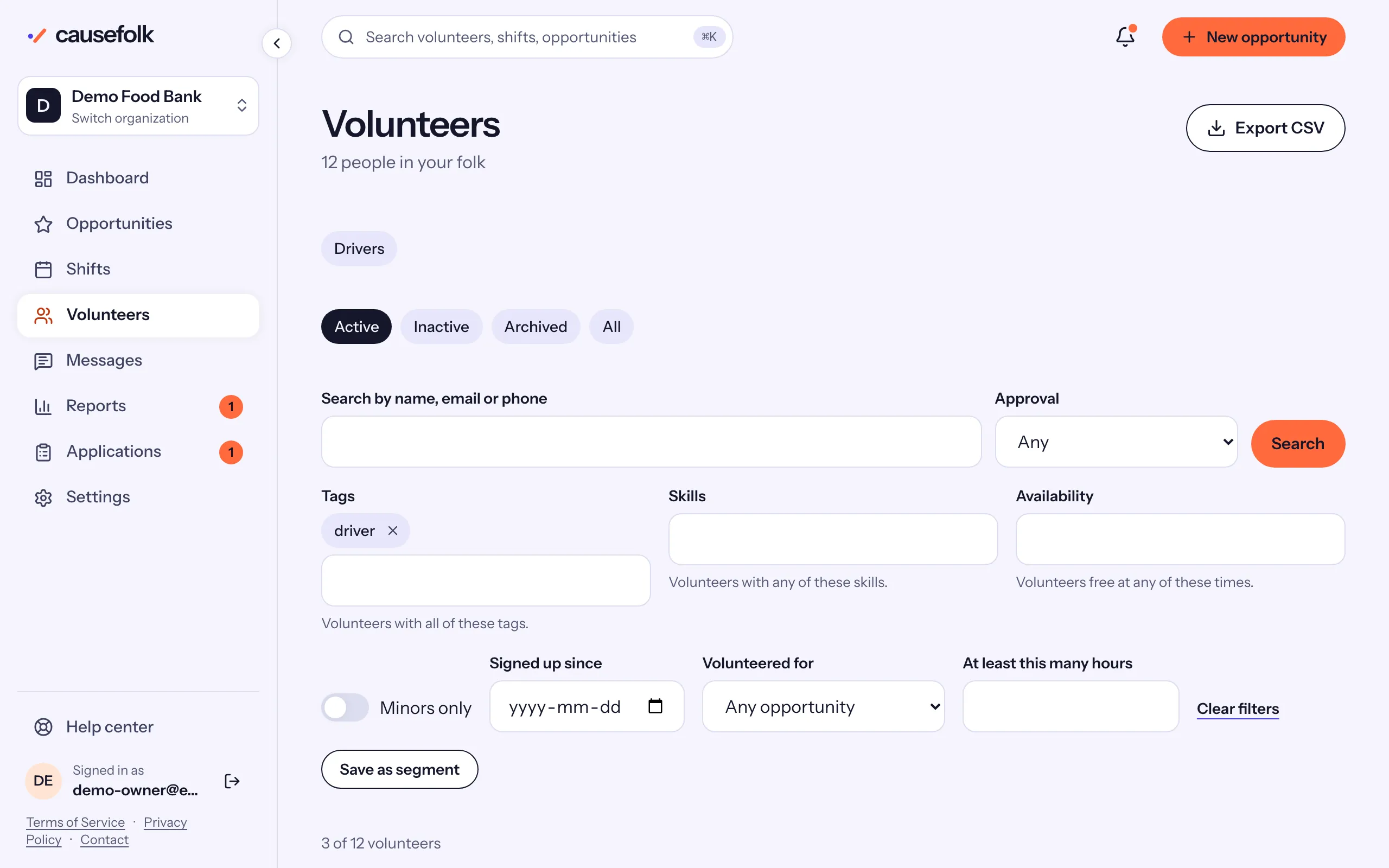
Search
Type in Search by name, email or phone and choose Search. Part of a name or an email is enough. For a phone number, type its digits in any format; the last four digits are enough.
Status chips
Active is chosen when you open the list. Choose Inactive, Archived or All to see the others. See Status, tags and notes.
Filters
| Filter | Finds volunteers… |
|---|---|
| Approval | whose application is in that state, or Not applied. |
| Tags | with all of these tags. |
| Skills | with any of these skills. |
| Availability | free at any of these times, such as Saturday morning. |
| Minors only | under your organization's minor age today (only those whose date of birth you know). |
| Signed up since | who signed up for any shift on or after that date, even if they later canceled. |
| Volunteered for | with a confirmed signup or a current series membership on that opportunity. |
| At least this many hours | whose own hours, all time, reach that number. |
Filters combine: a volunteer must match all of them. Choose Search to apply them and Clear filters to start again. The filter is part of the page's address, so you can bookmark it or send it to a colleague.
Save a segment
- Set up the filters and choose Search.
- Choose Save as segment.
- Enter a Segment name and choose Save segment.
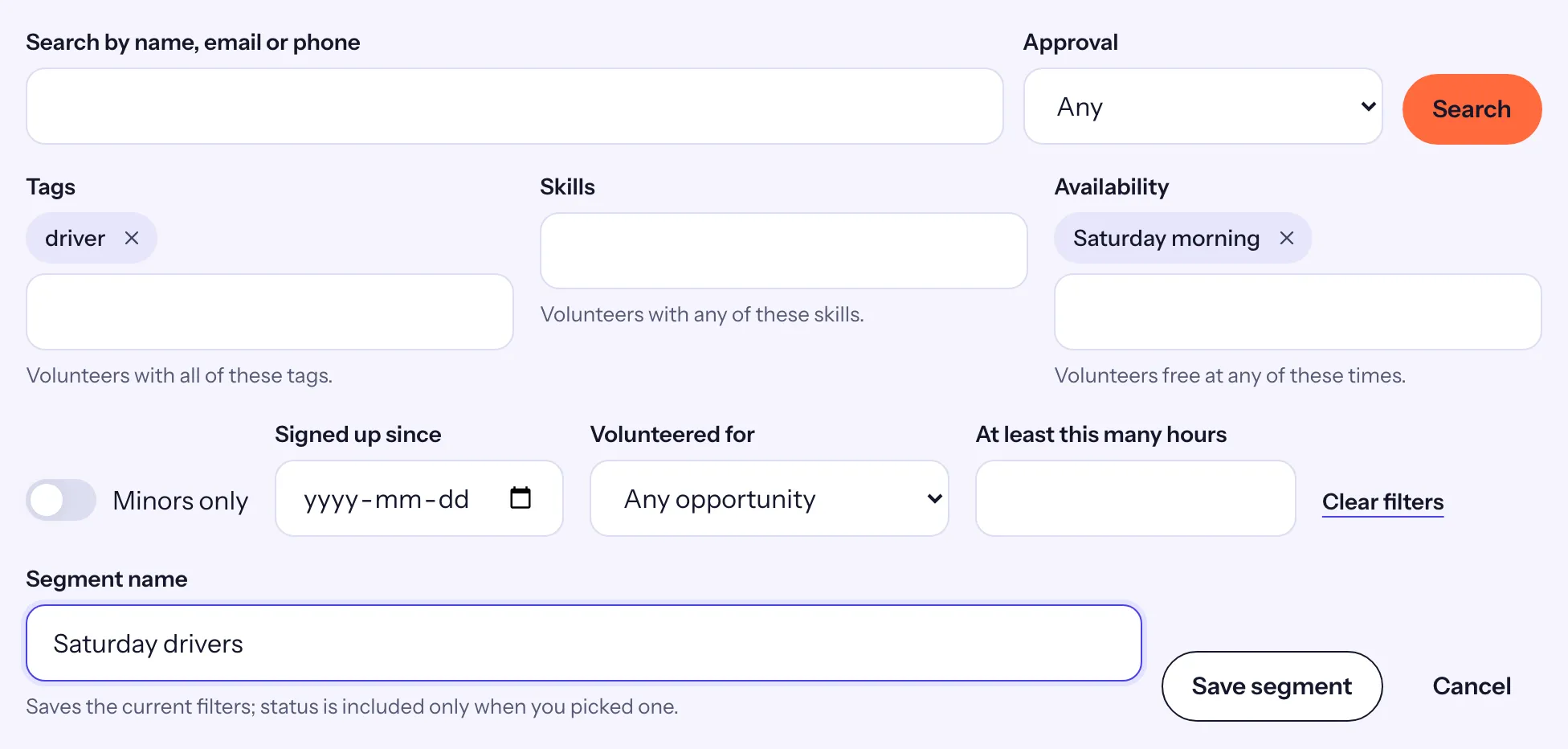
The segment appears as a chip at the top of the list. Choosing it applies its filter again. A segment is a saved filter, not a fixed list: whoever matches it on the day you use it is in it.
Use segments elsewhere:
- Messages: choose A segment as the audience when you write a message.
- Reports: choose a Segment on the Overview to see the hours of just those people.
To remove one, choose Delete segment beside its chip, then confirm. Messages already sent to it keep its name; a scheduled message to it will not be sent.