Push notifications
Volunteers can get a notification on their phone or computer for reminders, offers, changes, cancellations and your messages.
Besides email, volunteers can turn on notifications on a device: a reminder pops up on their phone before a shift, a waitlist offer arrives the moment a spot opens. Notifications come on top of email, never instead of it.
Where to find it
- Volunteers: the "Notifications on this device" card on their profile in your volunteer portal, and on "My volunteering".
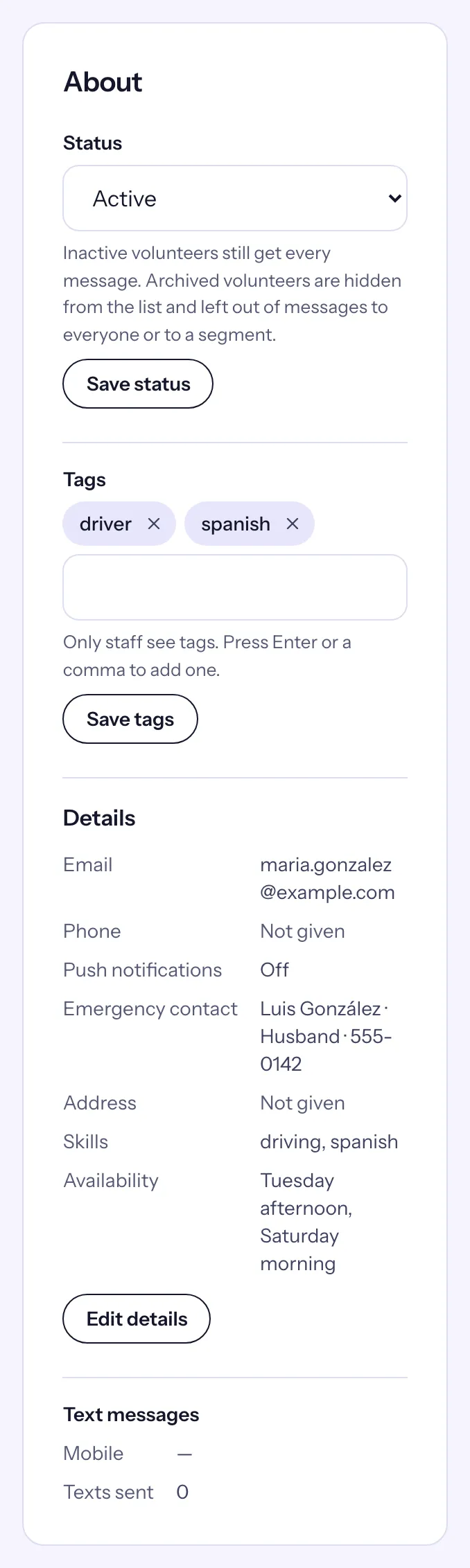
- Staff: the About card on a volunteer's record, and the Push column of a sent message's recipients.
What arrives as a notification
- Reminders of shifts they signed up for.
- A spot that opens for them on a waitlist.
- A change to a shift's time or place.
- A canceled shift.
- Messages from your team (the notification shows the subject).
The notification carries your organization's name and opens the volunteer's shifts, or the offer, when tapped.
For volunteers: turn notifications on
- Log in to the organization's volunteer portal and open your profile. (The same card is on "My volunteering" for all your organizations at once.)
- Find "Notifications on this device" and choose Turn on notifications.
- Your browser asks whether to allow notifications. Choose Allow.
The card then reads "On for this device", with the date. Turn off stops them on that device. Each device is turned on separately, and your emails keep coming as they do now.
On iPhone or iPad
Notifications need the portal on your Home Screen first:
- Open the portal in Safari and tap the Share button.
- Choose "Add to Home Screen", then tap Add.
- Open it from your Home Screen, go to your profile and choose Turn on notifications there.
If it says notifications are blocked
You once told your browser not to allow them for this site. Allow notifications for the site in your browser's site settings, then reload the page.
For staff: see who gets them
- On a volunteer's record, the About card shows "Push notifications": On, with the number of devices, or Off.
- On a sent message's page, the recipients list has a Push column: "Push · 1 device" when it reached a device, or why it did not.
There is nothing to turn on for your organization. If volunteers never see the card, notifications are not available on your Causefolk site.