Messages to volunteers
Email your volunteers, and text the ones who agreed to texts, from one shift up to everyone.
When a shift moves, the weather turns or you simply want to say thank you, write to your volunteers from Causefolk. Every message goes by email and, when you add a text, by text to the people who agreed to texts from you.
Where to find it
Messages in the sidebar lists what you have sent, newest first, with New message and Templates. You can also start from where the people are:
- Message these people on a shift's page.
- Message volunteers on an opportunity's page.
- Message members beside a series.
- Send a message on a volunteer's record.
Each opens the compose page with that audience already chosen.
Write and send a message
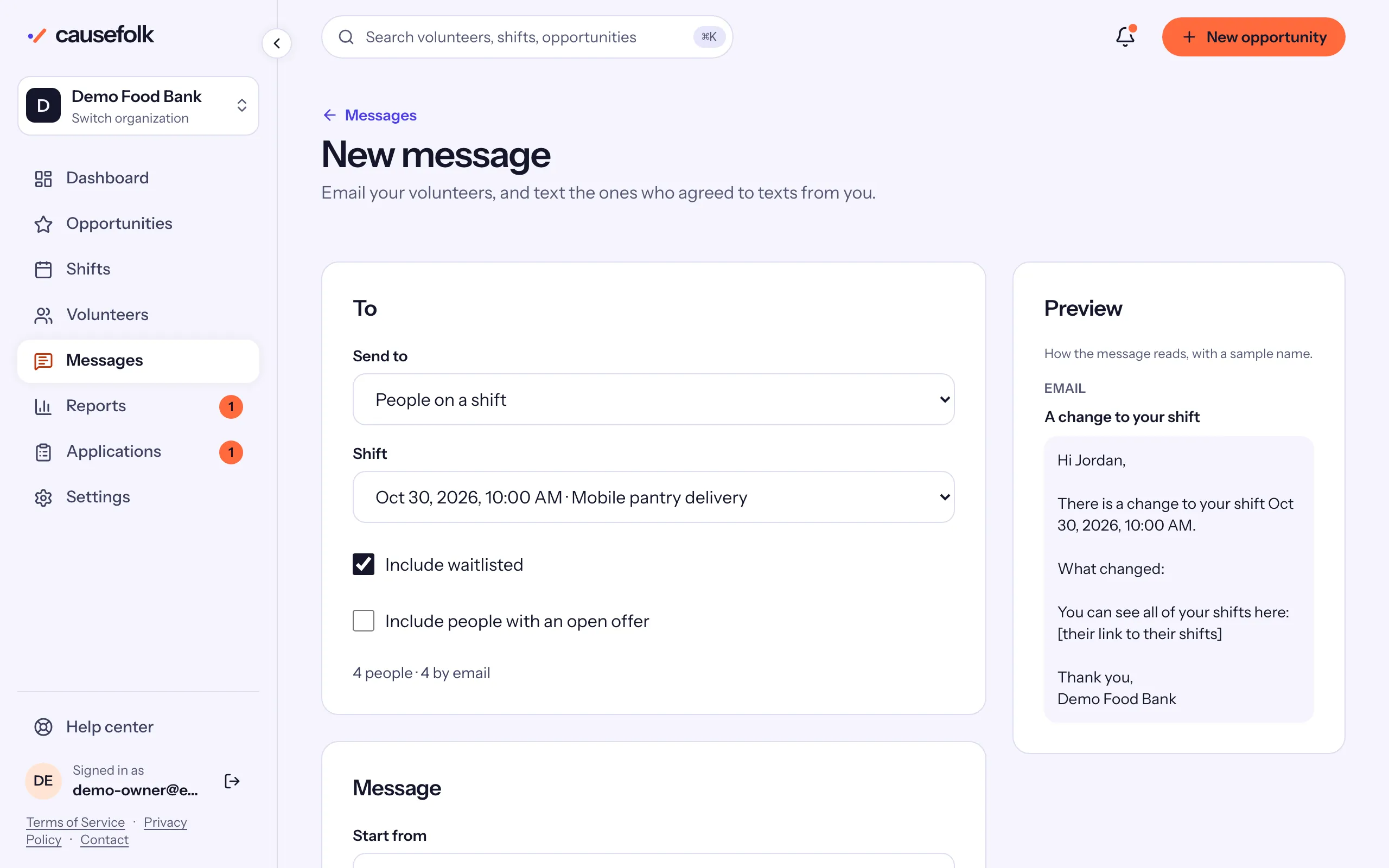
- Under Send to, choose who gets it: One volunteer, People on a shift, Members of a series, Volunteers of a cause, Everyone or A segment. For a shift you can Include waitlisted and Include people with an open offer. The line under the audience counts the people, how many get an email and how many a text.
- Under Start from, pick a starting point or one of your templates, or keep A blank message.
- Write the Subject and the Message. Insert a merge field adds a name or link that is filled in for each person.
- To text as well, tick Also send a text and write the Text.
- Check the Preview on the right, then choose Send. The confirmation says how many emails and texts go out; choose Send message.
Merge fields
| Field | Becomes |
|---|---|
{{first_name}} |
The person's first name |
{{name}} |
Their full name |
{{organization}} |
Your organization's name |
{{shift}} |
The shift's date and start time, in a message to a shift |
{{my_shifts}} |
Their own link to their shifts (email only) |
After sending
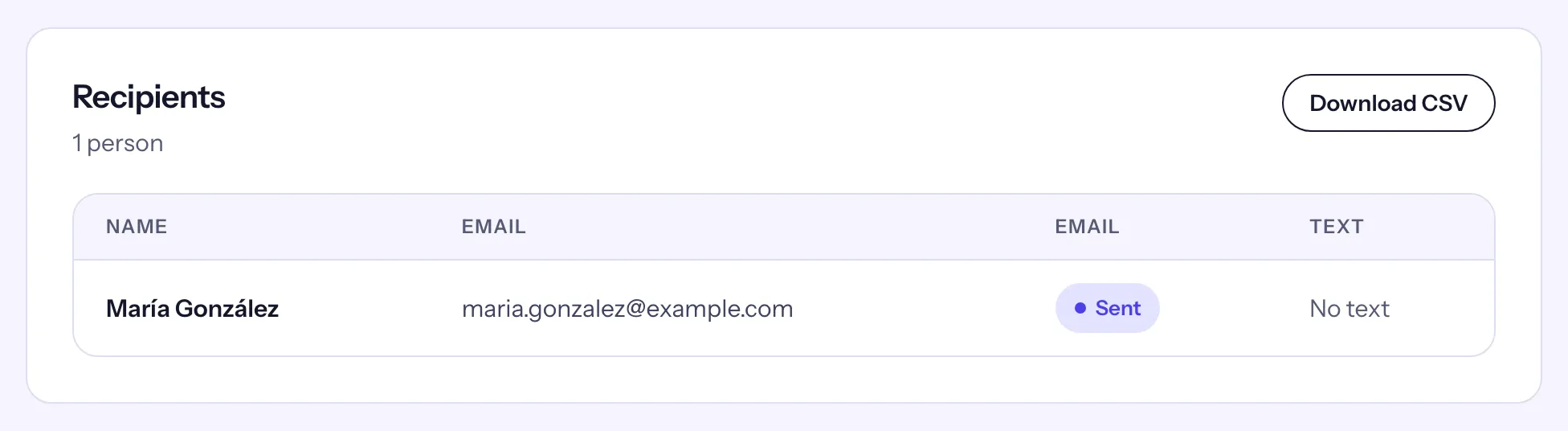
The message's page shows the Delivery per channel and the Recipients: each person with the outcome of their email and text (Queued, Sent, Dropped or Failed) and, for a dropped one, why in plain words. Download CSV saves the list.
How volunteers stop messages
Every email ends with a "Stop messages from" link for your organization, and volunteers have a "Messages from" switch on their profile. Every text starts with your organization's name and ends with "Reply STOP to opt out". Stopping your messages never stops shift reminders, waitlist offers or application updates. People who stopped are left out of every audience.