Templates and scheduling
Save messages you send often as templates, and schedule a message to go out later.
Two things save time on messages you send again and again: templates, so you never retype the same reminder, and scheduling, so a message can wait for the right moment.
Where to find it
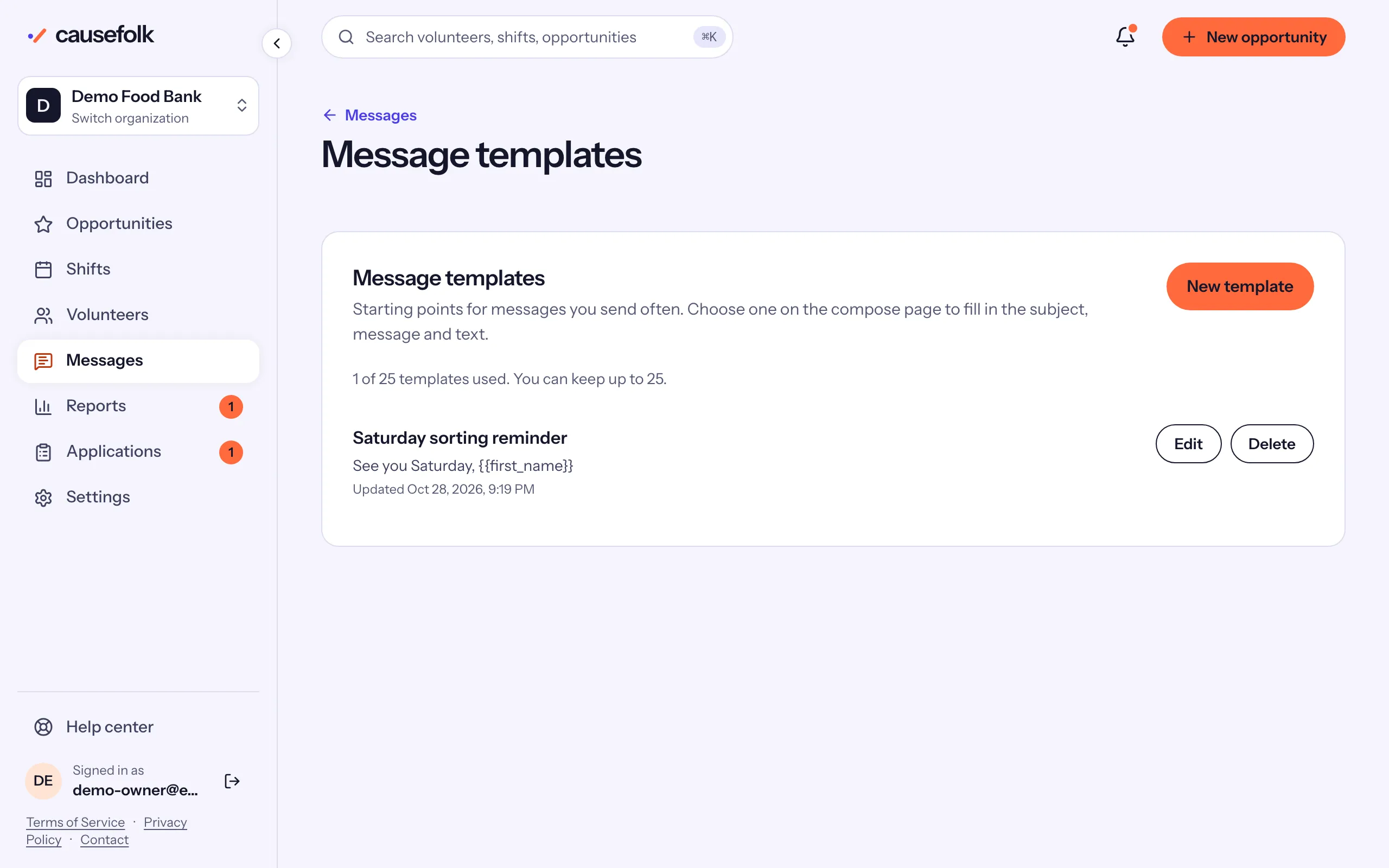
- Messages in the sidebar, then Templates, for your saved templates.
- The Start from list on the compose page, to use one.
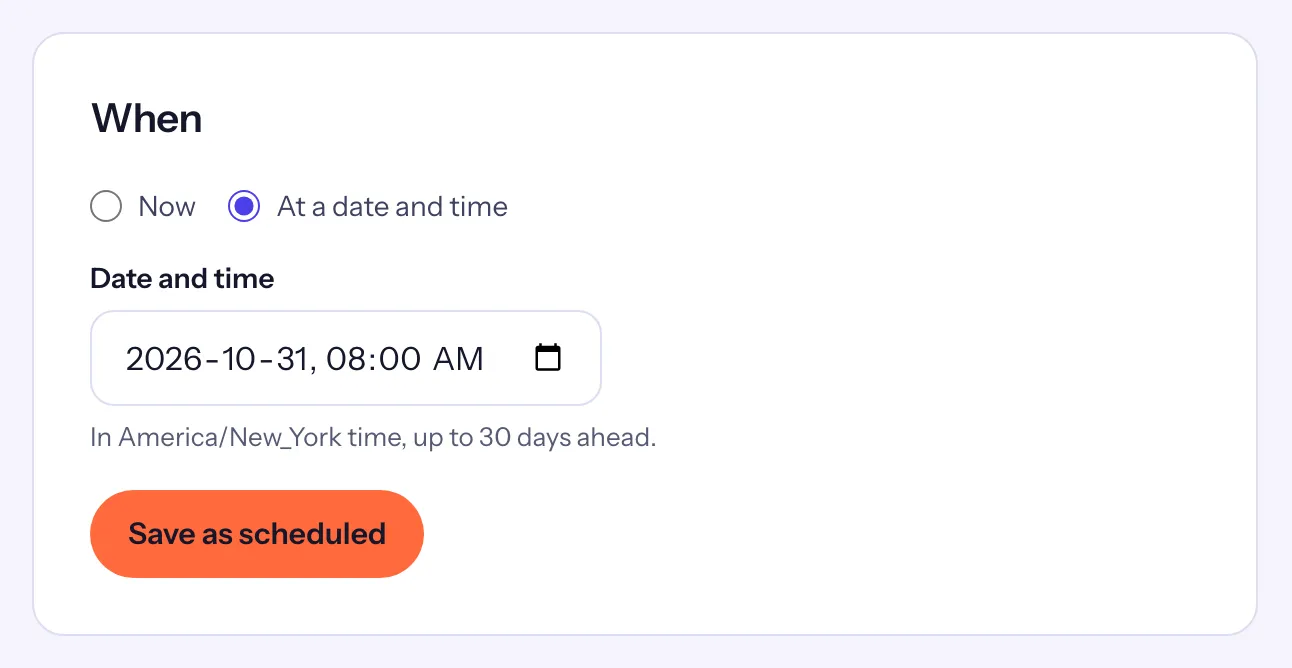
- The When card at the bottom of the compose page, to schedule.
Starting points
Three starting points come with Causefolk, under Start from: Shift change, Weather or cancellation and Thank you. Each fills in a subject, a message and a short text with merge fields such as {{first_name}}. Choosing one replaces what you had typed, so pick it first.
Create a template
- Open Messages, then Templates, and choose New template.
- Enter a Name (only your team sees it), a Subject and the Message.
- If you also send it as a text, write the Text (optional). Leave it blank to keep the template email-only.
- Choose Create template.
You can also keep a message you just wrote: under the compose form, Save as template asks for a Template name and keeps the subject, message and text.
Each template has Edit and Delete. Deleting asks you to confirm with Delete template and cannot be undone. Messages already sent from a template are not affected.
Schedule a message
- Write the message as usual (see Messages to volunteers).
- In the When card, choose At a date and time.
- Pick the Date and time, in your organization's time zone.
- Choose Save as scheduled.
The message appears in the Messages list as Scheduled, "For" its time, with Edit and Cancel. Edit changes anything about it until it goes. Cancel, then Cancel message, means it will not be sent.
What happens at the scheduled time
The audience is worked out when the message goes, not when you schedule it: someone who signs up for the shift tomorrow gets a message scheduled for next week, and someone who stopped your messages meanwhile does not. That is why a scheduled message lists its recipients only after it is sent.
If the message cannot go at its time, for example because it would pass a daily limit or nobody in the audience can receive it, it is canceled and its author gets an email saying why. Edit it and send it again.