Your sending domain
Send volunteer and staff email from your own domain, such as volunteer.yourorg.org, instead of the platform address.
Out of the box, the email Causefolk sends for you comes from the platform's address. With a sending domain, it comes from an address on your own domain, in your organization's name, which volunteers recognize and their inboxes trust.
Where to find it
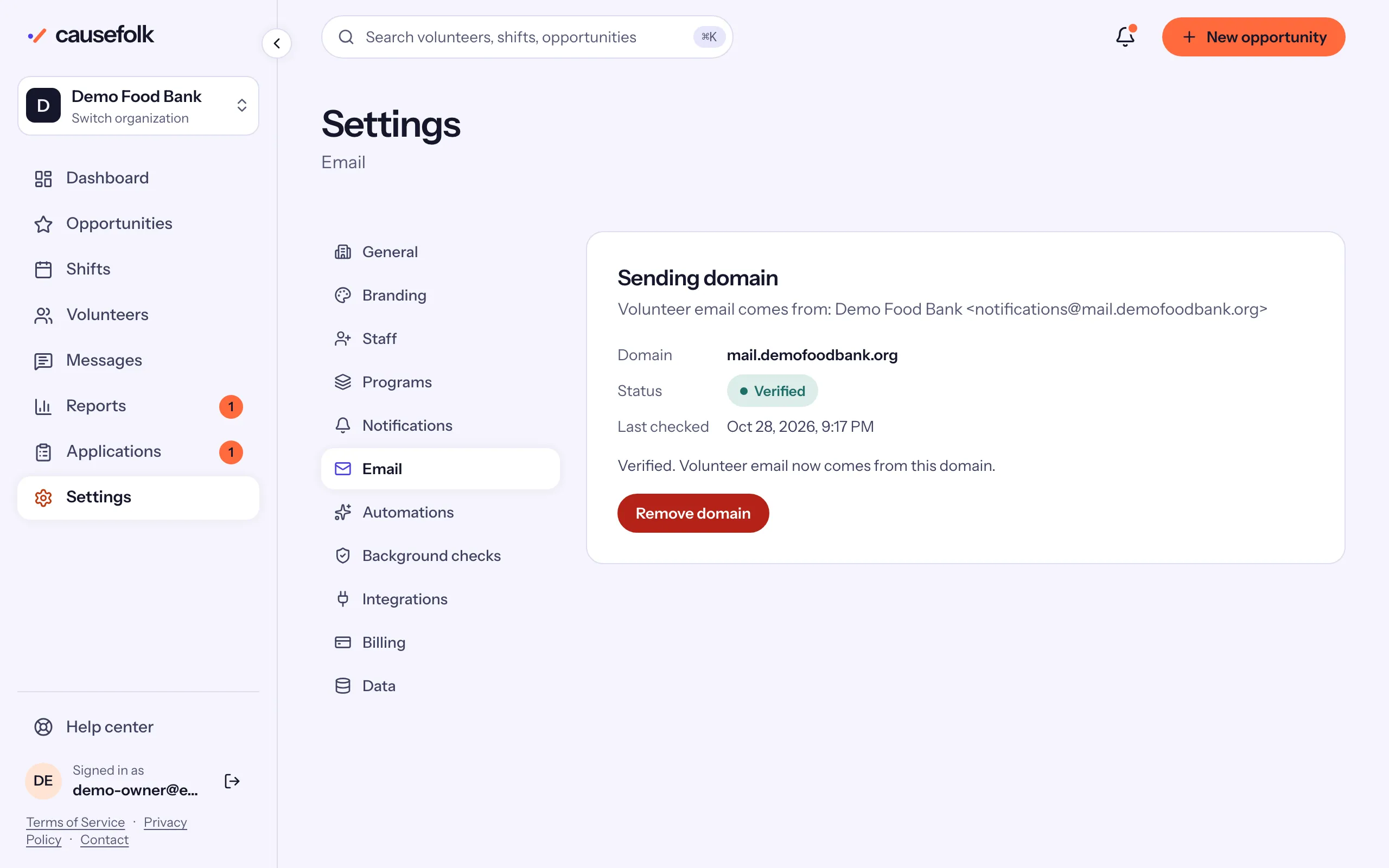
Settings, then Email. Owners add, check and remove the domain; staff see it read-only. The card starts with "Volunteer email comes from", the address in use now.
Add your domain
- Open Settings, then Email.
- Enter the Domain and choose Add domain. Use a subdomain such as volunteer.yourorg.org: a root domain's records can conflict with the email you already send.
- A table of DNS records appears, each with its Type, Name, Value and, for some, Priority. Copy copies a value.
- Add every record at your DNS provider (where your domain's settings are managed), exactly as shown.
- Wait. Causefolk checks the records automatically, or choose Check now.
The status
| Status | What it means |
|---|---|
| Pending | The records have not been seen yet. Causefolk keeps checking for 72 hours; DNS changes can take a while to appear. |
| Verified | Volunteer email now comes from this domain. |
| Failed | The records could not be verified. Check them at your DNS provider, then choose Try again, which checks for another 72 hours. |
Last checked says when Causefolk last looked. A domain still Pending 72 hours after it was added is marked Failed.
What changes once it is verified
Email to volunteers and to your team then comes from notifications@ your domain (for example notifications@volunteer.yourorg.org), with your organization's name as the sender, and replies go to your organization's contact email. That covers signup confirmations, reminders, waitlist offers, your own messages, automated emails and staff notifications.
Two kinds of email always come from Causefolk's own address: invitations to join your team, and billing email.
Remove or change the domain
Choose Remove domain, then Confirm remove. Email goes back to the platform address at once. To use another domain, remove the current one first, then add the new one.