My volunteering and the calendar feed
One page for every organization you volunteer with, and a private calendar link that puts all your confirmed shifts in your calendar app.
If you volunteer with more than one organization on Causefolk, My volunteering brings it all together: your upcoming shifts everywhere, what needs your attention, your hours, and a calendar link that keeps your calendar app up to date.
Where to find it
- Go to causefolk.com/me. If you are not logged in, enter your email, choose Email me a sign-in code and type the code.
- From any organization's portal, once you are logged in, choose My volunteering in the menu.
Use the email address you sign up with. Every organization where you signed up with that email appears; one where you used another email does not.
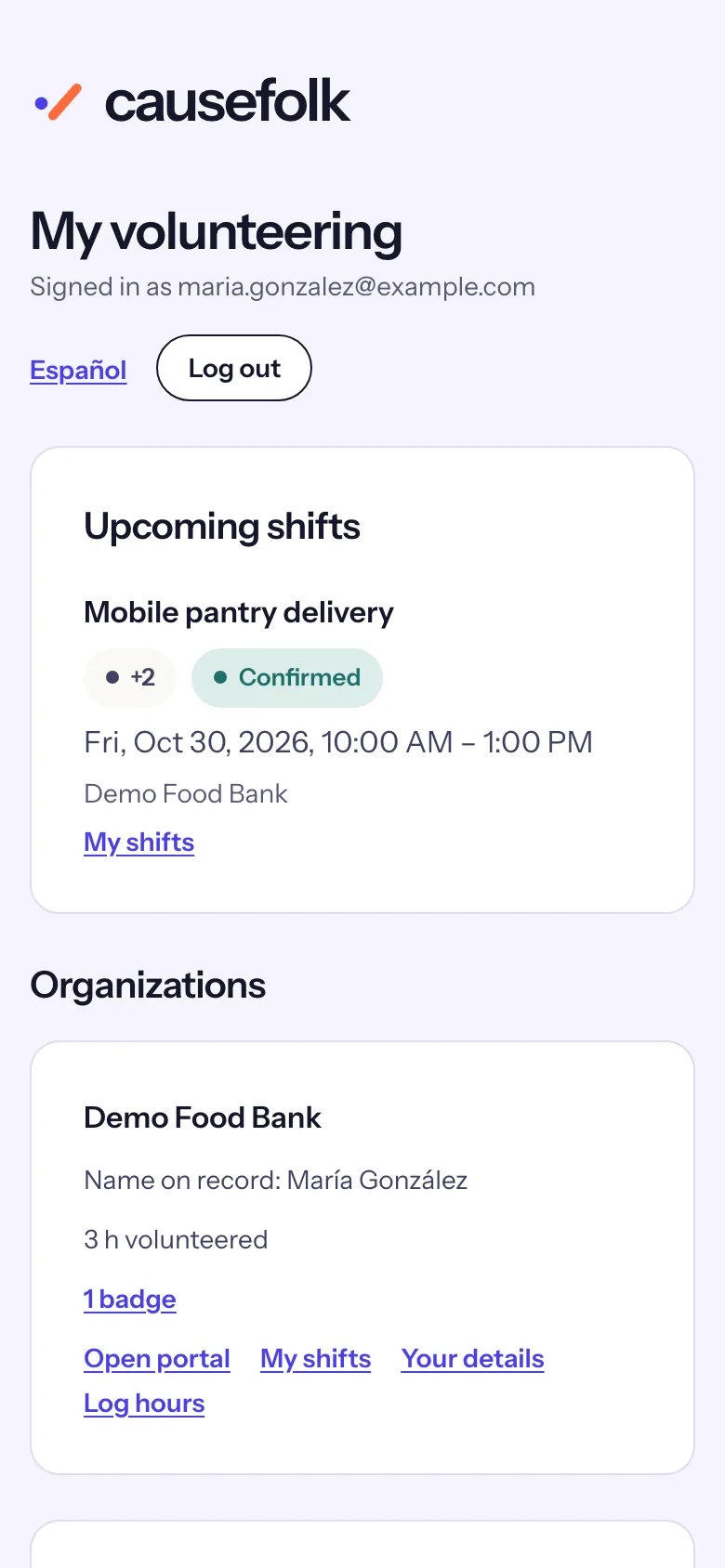
What the page shows
- Needs your attention: a held waitlist spot to claim ("See the offer"), an application being reviewed, an approval to renew ("Renew") or one that has expired ("Re-apply").
- Upcoming shifts: every upcoming shift from every organization, marked Confirmed, Waitlisted or Offer open, with a link to that organization's My shifts.
- Organizations: a card for each, with Open portal, My shifts and Your details, the name they have on record for you, your approval, your hours there and your badges.
- Hours: your total across all your organizations.
- Put your shifts in your calendar: your calendar link.
- Your account: deleting your sign-in account.
Add your shifts to your calendar
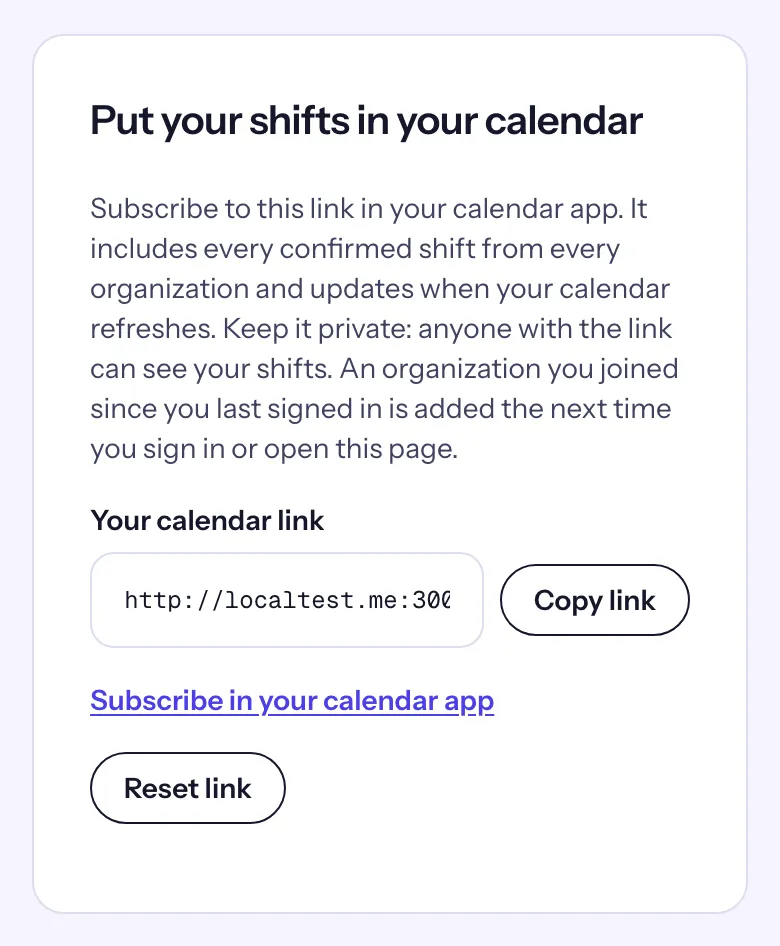
- Under Put your shifts in your calendar, choose Subscribe in your calendar app. Your phone or computer offers to add the calendar.
- Or choose Copy link and paste Your calendar link into your calendar app as a subscription (it is often called "add calendar from URL").
The calendar holds every confirmed shift from every organization, including those you join later, and "updates when your calendar refreshes". Calendar apps refresh on their own schedule, sometimes only every few hours.
Reset the link
The link is private: "anyone with the link can see your shifts". If you shared it by mistake:
- Choose Reset link.
- Confirm with Yes, reset the link.
The old link stops working at once. Subscribe again with the new one on each calendar you use.
Delete your sign-in account
Under Your account, type your email to confirm and choose Delete my sign-in account, then Yes, delete my account. This deletes only the account you log in with: each organization keeps your volunteer record and history. To have a record deleted, ask that organization from your profile in its portal. If you log in again later with the same email, a new account is created and linked to your records.