Badges, leaderboard and certificates
The badges you earn as you volunteer, the leaderboard you can choose to join, and a printable certificate of your hours.
Your volunteering adds up, and Causefolk shows it: badges for milestones, an optional leaderboard if the organization runs one, and a certificate you can print for school, work or your own records.
Where to find it
- Your badges: on My shifts and on your profile. My volunteering shows how many badges you have with each organization.
- Leaderboard: in the portal's menu, when the organization has turned it on.
- Print a certificate: beside your hours at the top of My shifts, once you have hours.
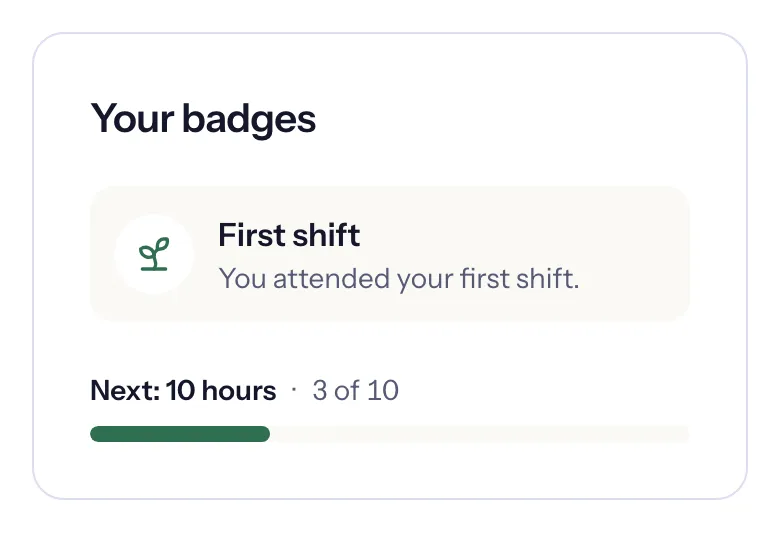
Badges
| Badge | You earn it when |
|---|---|
| First shift | you attend your first shift |
| 10 hours, 25 hours… | your hours reach 10, 25, 50, 100, 250, 500 and 1,000 |
| 3-month streak, 6-month streak… | you volunteer 3, 6 or 12 months in a row |
| 10 shifts, 50 shifts… | you attend 10, 50 or 100 shifts |
| Team builder | you bring a group to 3 shifts |
| 1 year, 3 years… | you have volunteered for 1, 3 or 5 years |
Under your badges, the next one to earn shows with its progress, for example "Next: 25 hours" and "12 of 25". A dot marks badges that are new since you last looked.
Your hours count every hour credited to you: shifts you attended, hours the organization recorded for you, and hours you logged that were approved. Shifts, streaks and your first shift count only shifts where your attendance was recorded. Hours your guests gave are not added to yours.
Badges always match your record. If the organization corrects your hours down, a badge can go away again.
The leaderboard
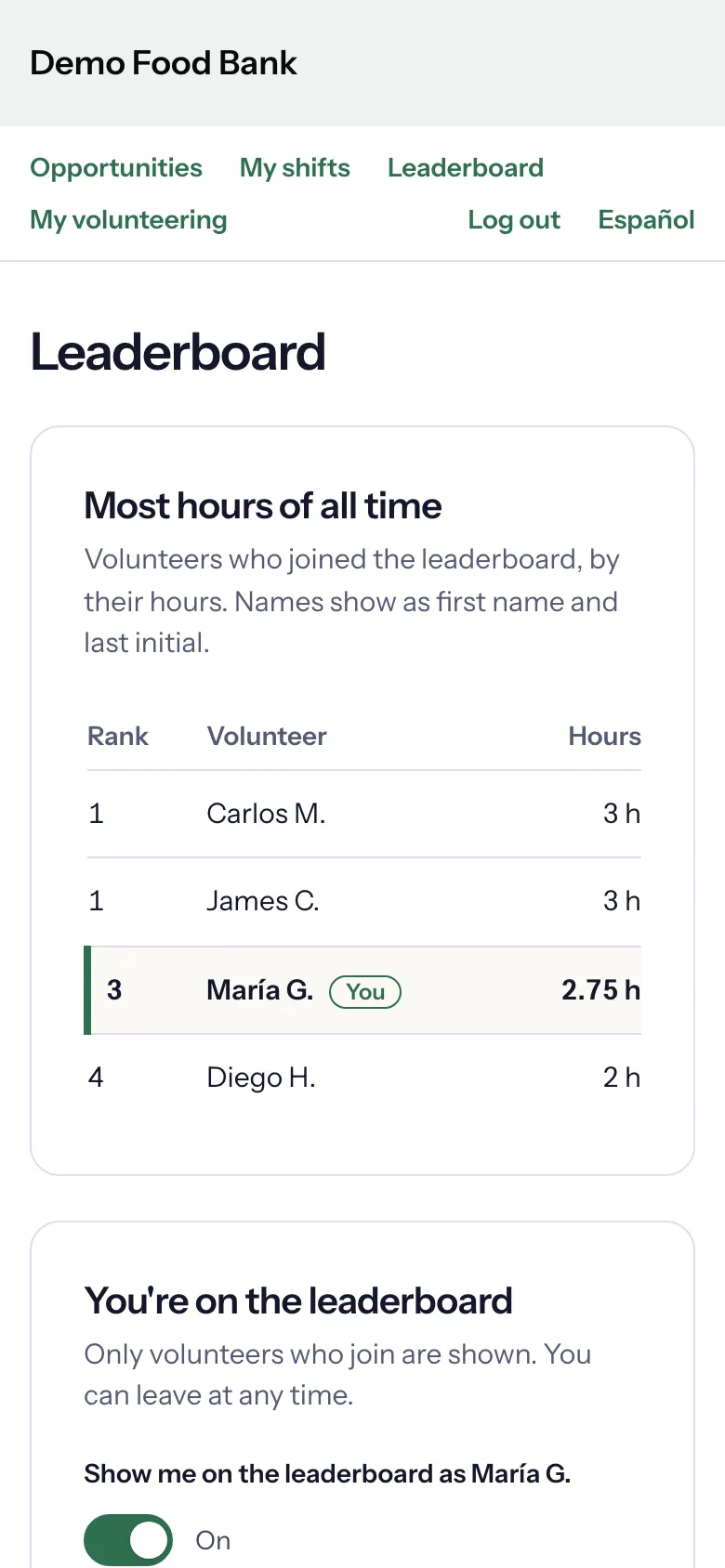
An organization can show its volunteers with the most hours this month, this year or of all time. Nobody is on it unless they join.
- Choose Leaderboard in the portal's menu and log in if asked.
- Under Join the leaderboard, turn on Show me on the leaderboard as with your name.
You appear with your first name and the first letter of your last name, such as "Ana R.". The board lists the top 10; if you are not among them, it tells you your place, for example "You're #2 with 3 h". Turn the switch off to leave at any time.
Your certificate
- On My shifts, choose Print a certificate.
- Under Period, choose This year, Last year, All time or Custom dates with From and To.
- Choose Show certificate, then Print.
The certificate names you and the organization and shows your hours and shifts in that period, the badges you have earned and lines for a signature and date. If you chose Spanish, it is in Spanish.