My shifts and manage links
See your upcoming and past shifts, cancel, answer a waitlist offer, change your party or role, and leave a series, with or without logging in.
My shifts is your page on an organization's portal: every shift you signed up for there, what you can still change, and the hours you have given.
Where to find it
Two ways in, and both show the same list:
- Logged in: choose My shifts in the portal's menu.
- From an email: every signup email has View or cancel my signups. That private link opens your shifts without logging in.
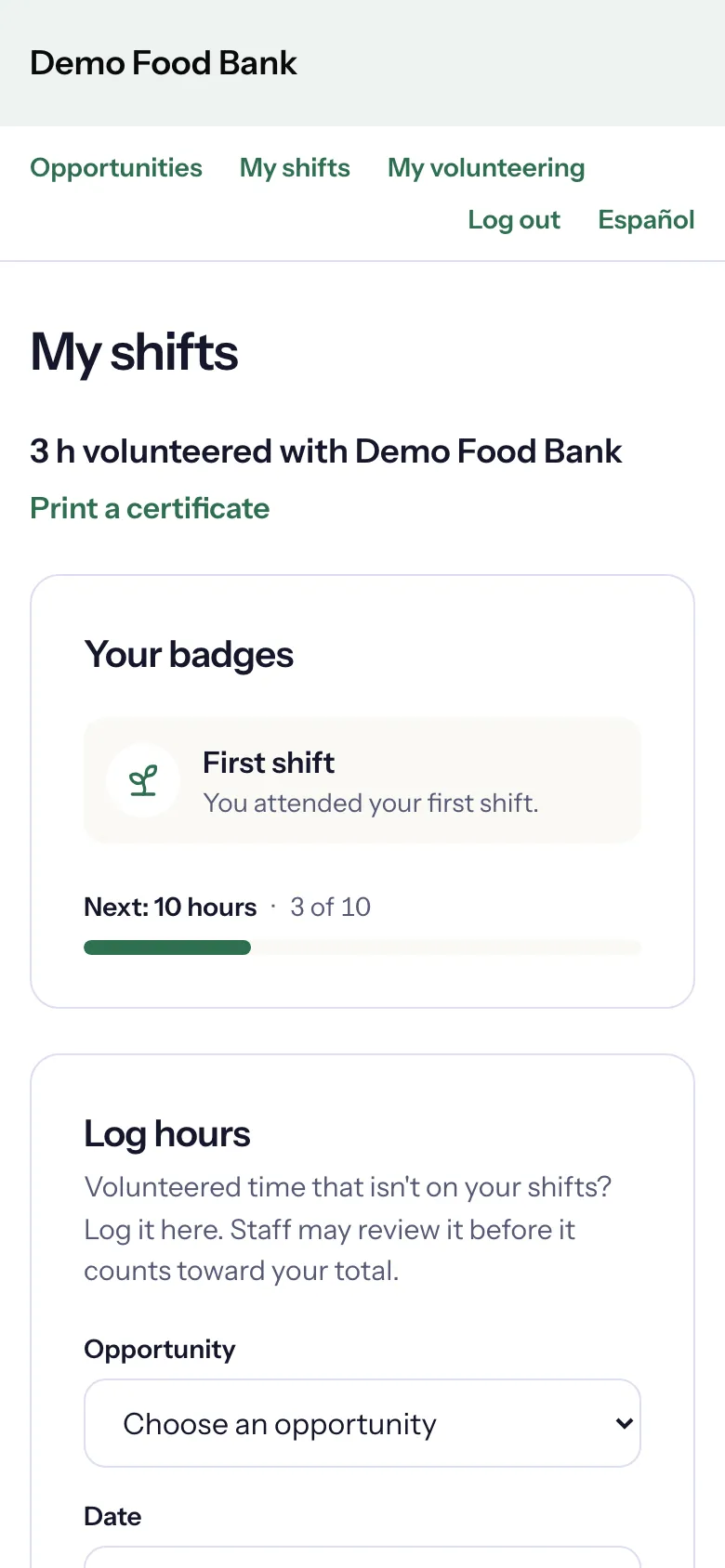
What the page shows
- Your hours at the top: "3 h volunteered with Demo Food Bank", for example, and Print a certificate once you have hours.
- Your badges, and Log hours if the organization lets volunteers log their own time.
- Your series: the repeating shifts you joined.
- Upcoming shifts, each marked Confirmed or Waitlisted, with what you can do.
- Past shifts, with your attendance: "Attended · 3 h", "No-show", or the time you checked in and left.
- Other hours: hours the organization recorded for you outside a shift.
Cancel a shift
Choose Cancel on the shift. If you signed up a group, you are asked to confirm, because canceling cancels everyone in your party: choose Yes, cancel. You get an email saying the signup was canceled.
You can cancel until the shift starts. After that: "This shift has already started, so it can no longer be canceled." Let the organization know if you cannot come.
Answer a waitlist offer
When a spot opens on a full shift, the organization may hold it for the first person on the waitlist. If that is you, you get an email, and the shift in My shifts reads "A spot opened up. Claim it before…" with the deadline.
- Choose Claim to take the spot: "You're confirmed. See you there!"
- Or choose Decline, then Yes, decline, to leave the waitlist for that shift.
If you do nothing, the spot goes to the next person when the time is up, and you stay on the waitlist.
Your party and your role
- Edit party: when you are logged in, a group signup lets you change how many people come and their names, then Save party. Growing needs free spots; once the shift starts, ask the organizer.
- Change role: when you are logged in, on a shift with roles, pick a New role and choose Save role, while the new role has room and the shift has not started.
Leave a series
Under Your series, choose Leave series, then Yes, leave. "Your upcoming dates in this series will be canceled. Past dates are kept." To miss just one date, cancel that date's shift instead: you stay in the series.