Self check-in
Let volunteers check themselves in with the QR poster, their daily code or "I'm here" on their phone.
Volunteers can check themselves in, so nobody has to stand at the door with the roster. Each check-in records the arrival time and marks them Attended, exactly as a staff mark would, and the roster shows how they did it.
Where to find it
- The switch: Settings, then General (owners), "Let volunteers check themselves in". It is on unless an owner turns it off.
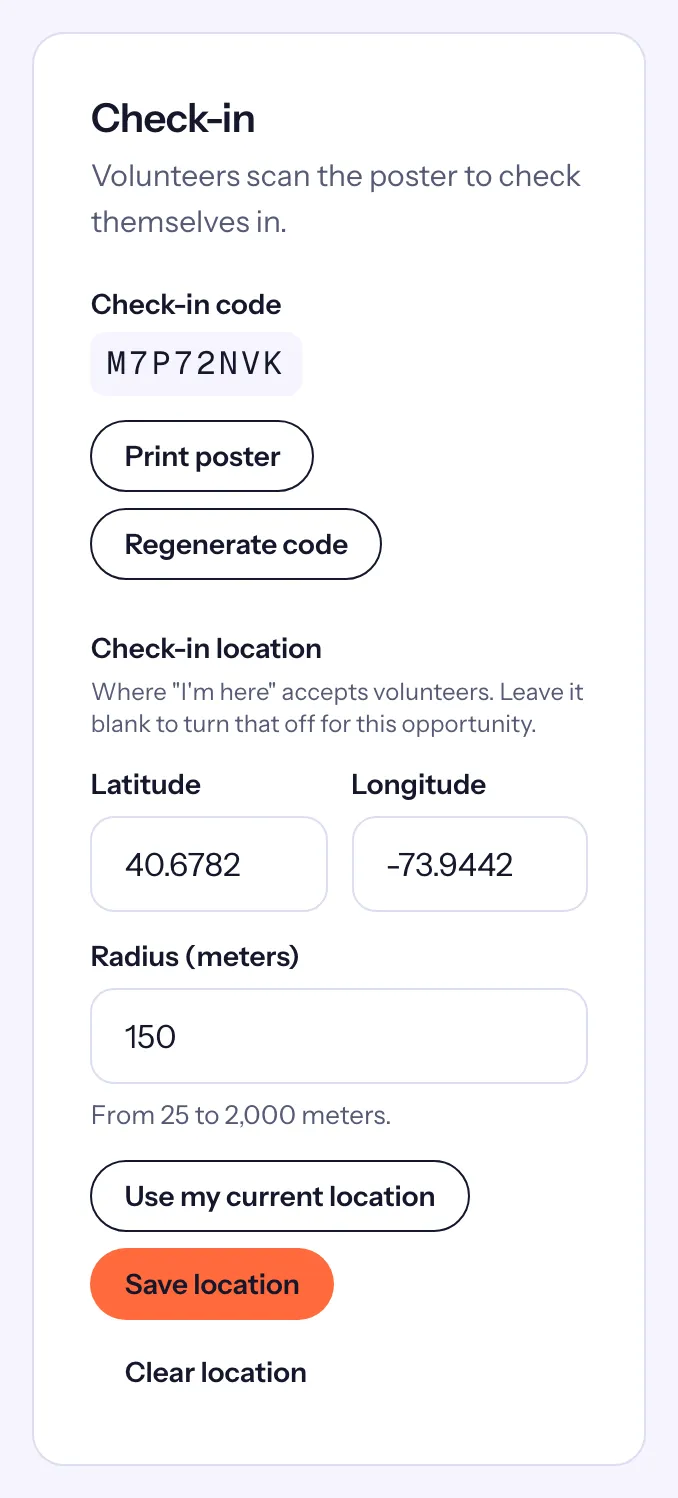
- The poster and the check-in location: the Check-in card on each opportunity's page.
- The scanner for volunteers' codes: the "Scan check-in codes" card at the top of a shift's page, while check-in is open.
Four ways to check in
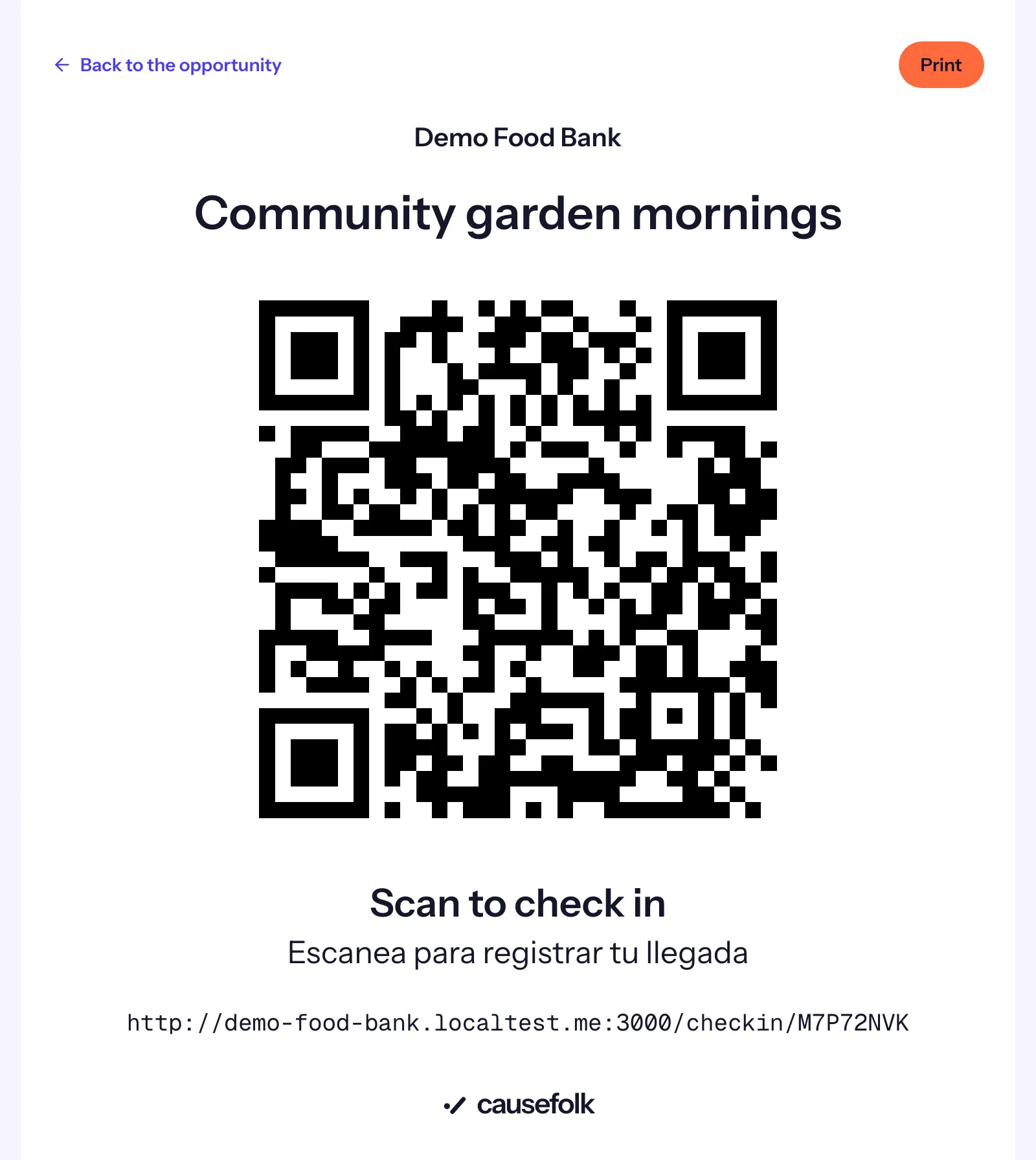
The QR poster
- On the opportunity's page, choose Print poster in the Check-in card and put the poster up where volunteers arrive.
- A volunteer scans it with their phone's camera, enters the email they signed up with and chooses Find my shift. A volunteer already logged in to your volunteer portal skips the email.
- They choose who is with them, if they brought guests, and tap Check in.
One poster serves every shift of the opportunity. Regenerate code makes a new one: old posters stop working, so print the new poster.
The daily code
Every volunteer has a six-character check-in code, with its QR code, under "Your check-in code" on their profile and on their shift in My shifts while check-in is open. A new code comes each day, in your organization's time zone, and it also works the next day, for shifts that run past midnight.
On the shift's page, choose Start camera and point it at the volunteer's phone, or type the six characters under Volunteer code and choose Check in. Their whole party is checked in.
"I'm here"
When an opportunity has a check-in location, volunteers see I'm here on their shift in My shifts (and on the page their email links open) while check-in is open. Their browser asks to share their location; it is compared with the check-in location once and never stored.
To set the location, stand at the spot and choose Use my current location in the Check-in card, or type the Latitude and Longitude. Set the Radius (meters) and choose Save location. Clear location turns "I'm here" off for that opportunity.