Kiosk mode
Run check-in and check-out for the day on a tablet at the door, with no staff sign-in on the tablet.
A kiosk turns a tablet (or any browser) into a check-in station for one opportunity. Volunteers find their name, tap, and they are checked in. Nobody signs in to the tablet, and it shows nothing a passer-by should not see.
Where to find it
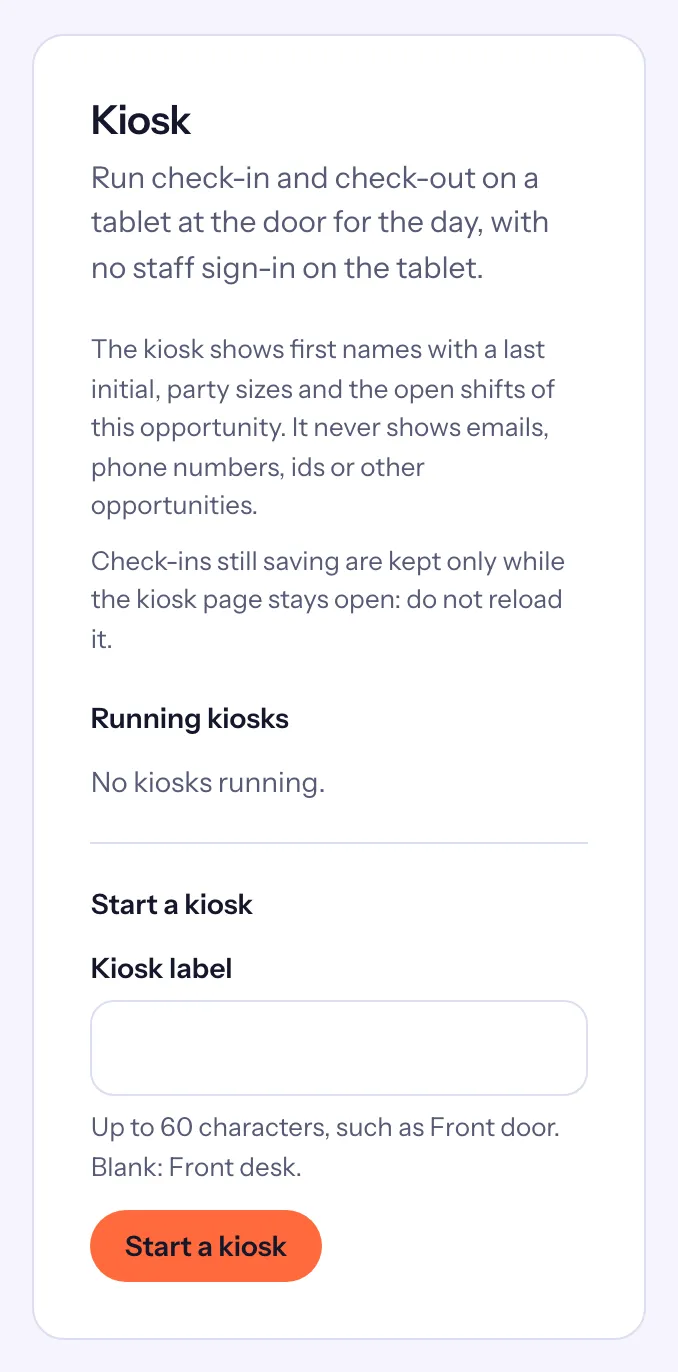
The Kiosk card on an opportunity's page, under the Check-in card. It lists the "Running kiosks" and has Start a kiosk.
Start a kiosk
- On the opportunity's page, type a Kiosk label if you like, such as Front door. Left blank, it is called Front desk.
- Choose Start a kiosk. A link and its QR code appear once.
- On the tablet, open the link (scan the QR code, or use Copy link and send it to yourself). The link works on one tablet, until the time it shows: 15 minutes after you start it.
- Choose Done. The kiosk is listed under "Running kiosks" with who started it and how many check-ins it has made.
The tablet shows the opportunity's shifts for the day, with "Check-in open" or the time check-in opens.
What volunteers do
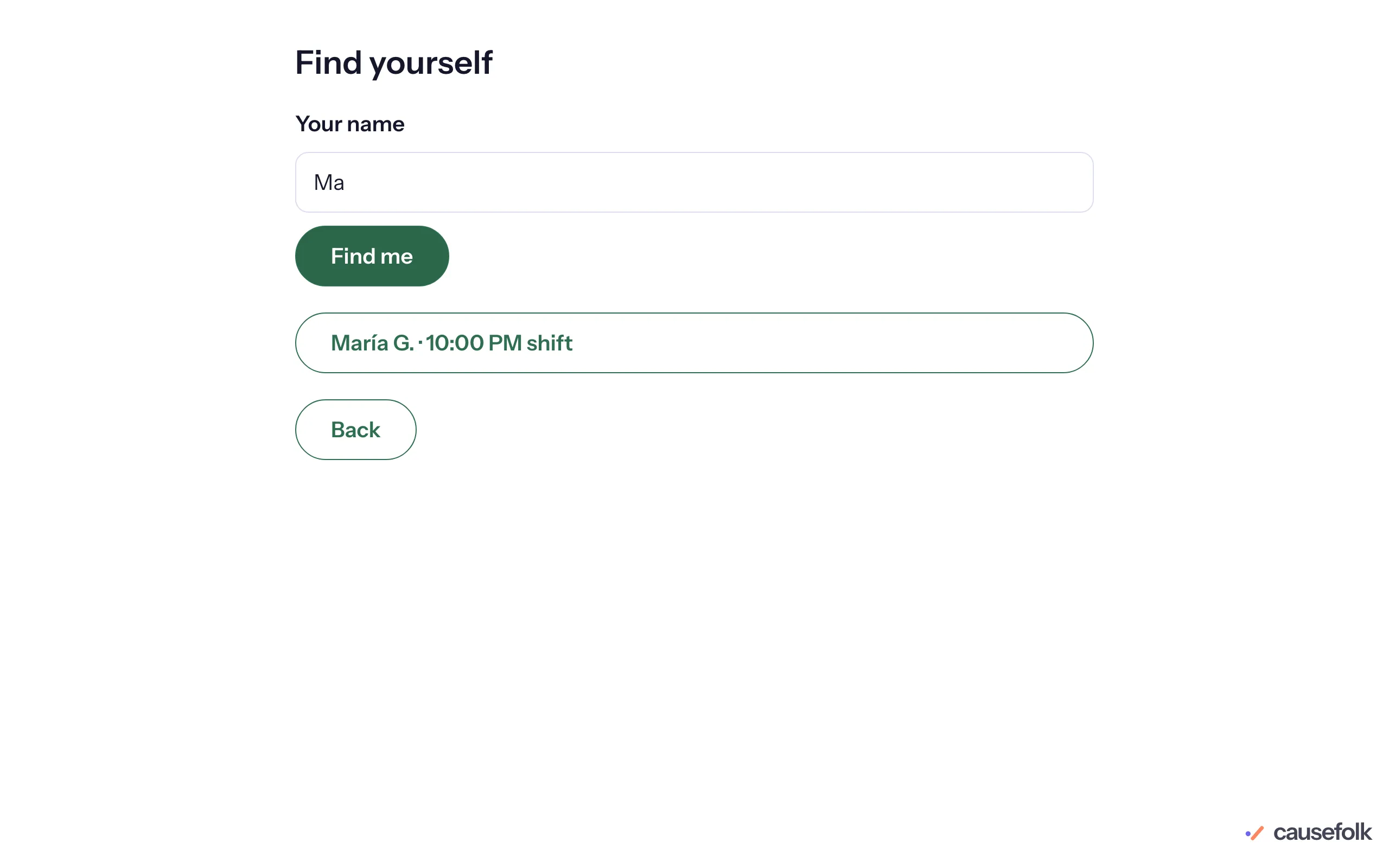
- Tap Check in, type at least 2 letters of their name and tap Find me.
- Tap their name, then Check in. If they brought guests, they choose who is with them.
- They see "Thanks, María! You’re checked in." For a minute after they tap, Not me — undo takes it back if they tapped the wrong name.
Scan my code reads a volunteer's daily check-in code with the tablet's front camera, or they can type it. When they leave, they find their name again and tap Check out; their whole party checks out together.
People without a signup
When "Let people without a signup check in at a kiosk" is on (Settings, then General; on by default), the kiosk offers I don’t have a signup. The person gives their name, email, how many people are with them, their shift and a role if the shift has roles, and is signed up and checked in at once, as long as the shift has room. No email is sent to the address they type. Walk-ins are never offered on an opportunity that needs approval, a background check or a requirement.
End a kiosk
A kiosk ends on its own 2 hours after the last of its shifts in the next 24 hours ends. To end it sooner, choose Revoke beside it, then Revoke kiosk: the tablet stops checking people in right away.