Manual and self-reported hours
Add hours that no shift recorded, let volunteers log their own, and review what they send.
Not all volunteering happens on a shift. A board member's evening, a driver's extra run or a shift nobody marked can still count: your team can add the hours by hand, and volunteers can log their own for you to review.
Where to find it
- Hours you add: the Log hours card on a volunteer's record (Volunteers, then their name).
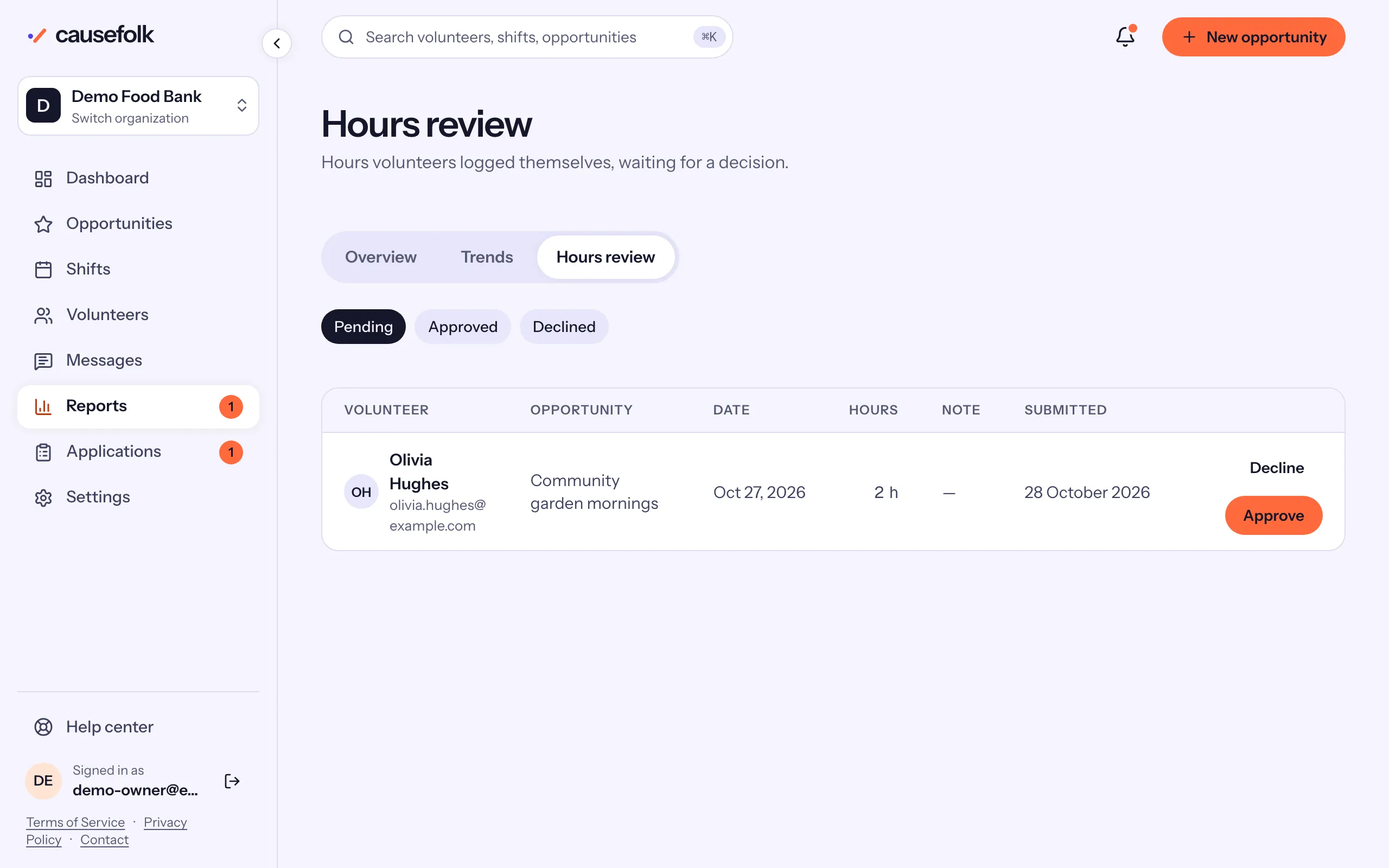
- Hours volunteers log: Reports, then the Hours review tab. While entries wait, the Reports item in the sidebar shows how many.
- The switch: Settings, then General (owners), "Let volunteers log their own hours". It is off until an owner turns it on.
Add hours by hand
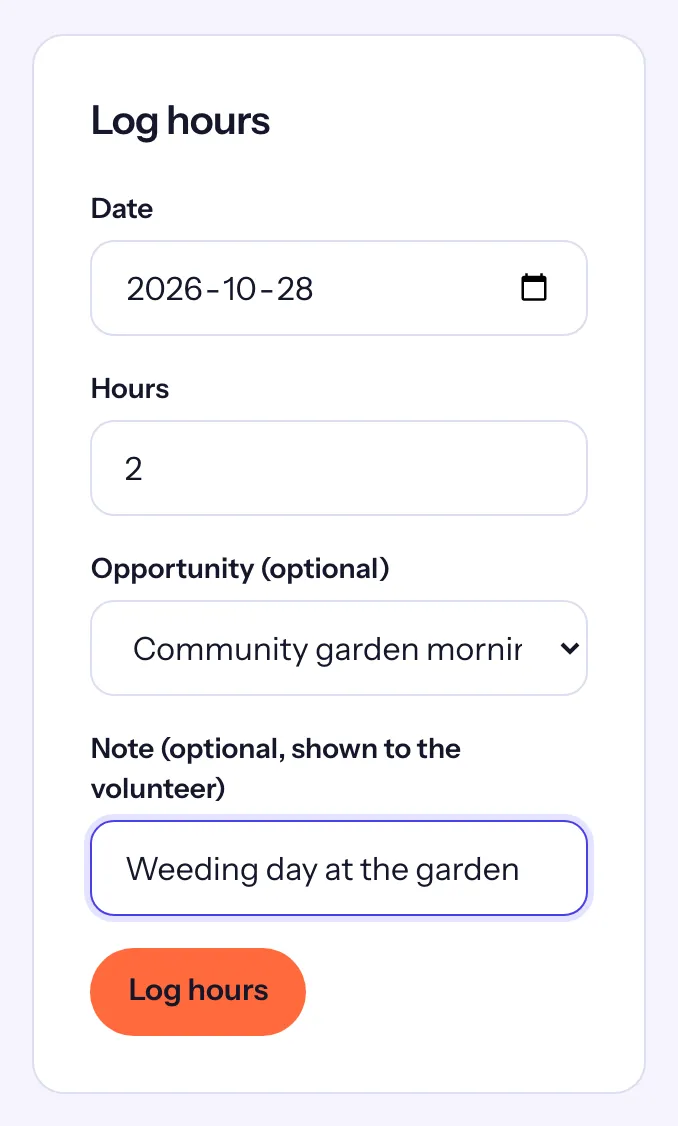
- Open the volunteer's record and find the Log hours card.
- Enter the Date and the Hours.
- Choose an Opportunity (optional) and write a Note (optional, shown to the volunteer) if you like.
- Choose Log hours.
The entry appears in the record's Hours card as "Manual", with Edit and Delete.
Let volunteers log their own hours
- An owner turns on "Let volunteers log their own hours" and chooses how entries are treated under "Volunteer-logged hours": Review every entry or Approve automatically.
- Each opportunity can differ, under "Volunteer-logged hours" on its form: Organization default, Always review, Approve automatically or Not allowed.
Volunteers then see a Log hours card on My shifts in your volunteer portal. They choose the opportunity, date and hours, with an optional note. Past shifts they signed up for, where nothing was recorded, appear as one-tap shortcuts.
Review what they send
- Open Reports, then Hours review. Pending lists entries waiting, oldest first.
- Choose Approve, then Confirm approve. To credit other hours than they logged, change Adjust hours first.
- Or choose Decline, write a Reason (sent to the volunteer), then Confirm decline.
The volunteer is emailed either way. The same buttons sit on the volunteer's record, where waiting entries are listed first in the Hours card. Approved and Declined list past decisions and who made them.
An entry marked Needs a look "Has a shift or recorded hours for this opportunity that day": check it is not the same time twice. Such entries are never approved automatically.