Reports, trends and exports
See your hours, people and attendance for any period, how they change month to month, and download them as CSV.
Every attended shift, manual entry and approved self-reported entry adds up in Reports. The Overview answers "how much, and by whom" for a period; Trends shows how the months compare.
Where to find it
Reports in the sidebar. The tabs under the heading are Overview, Trends and Hours review (see Manual and self-reported hours).
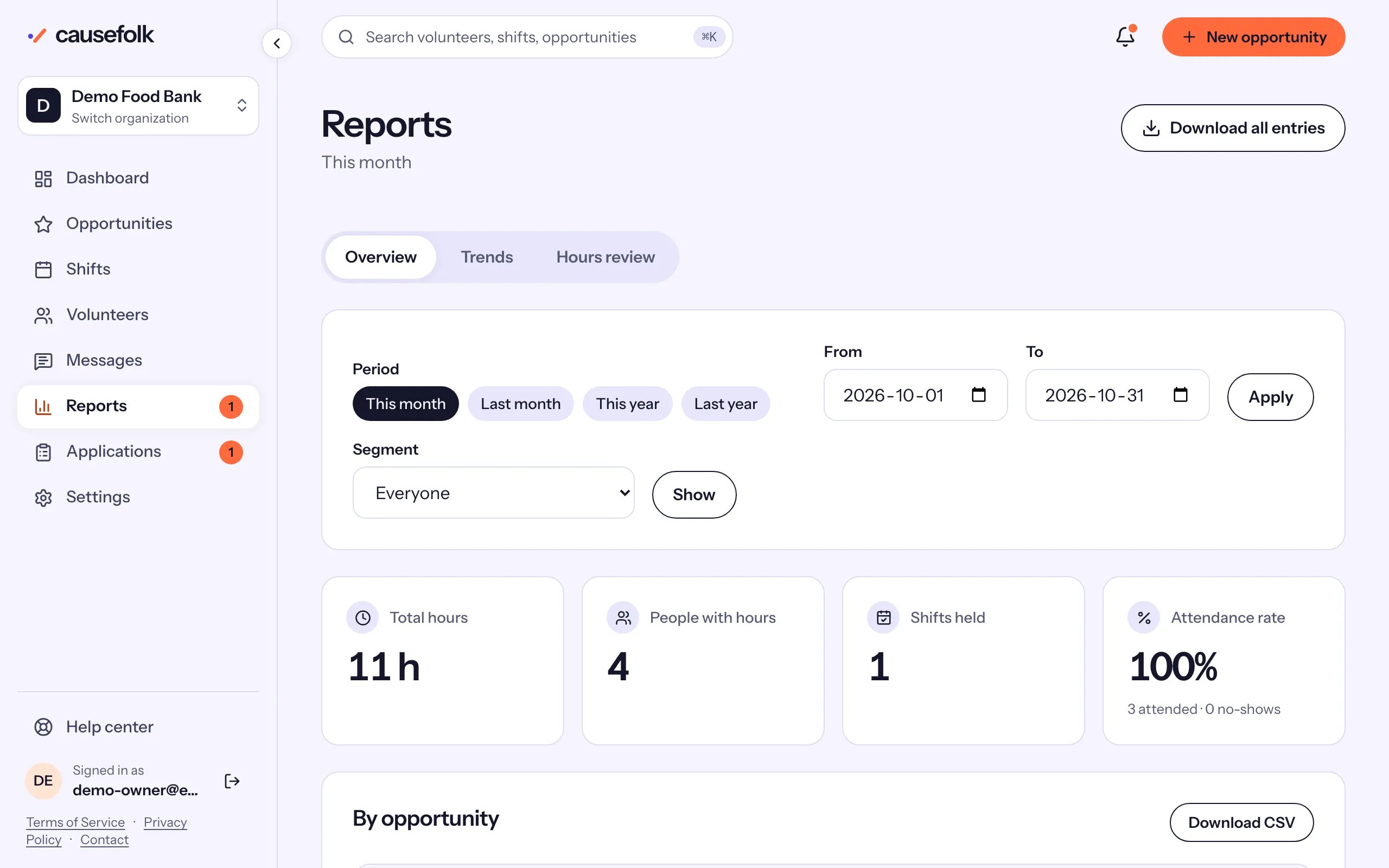
The Overview
- Choose a period: This month (the default), Last month, This year or Last year. For other dates, enter From and To and choose Apply.
- To report on a group, choose a saved Segment and Show. Every figure and download then covers its members and the guests they brought. Clear segment goes back to everyone.
The four cards show Total hours, People with hours, Shifts held and the Attendance rate (attended people over everyone marked, with the counts under it). Below them, By opportunity lists each opportunity's hours and volunteers, and Top volunteers the 50 with the most hours, with their guests' hours and no-shows.
Trends
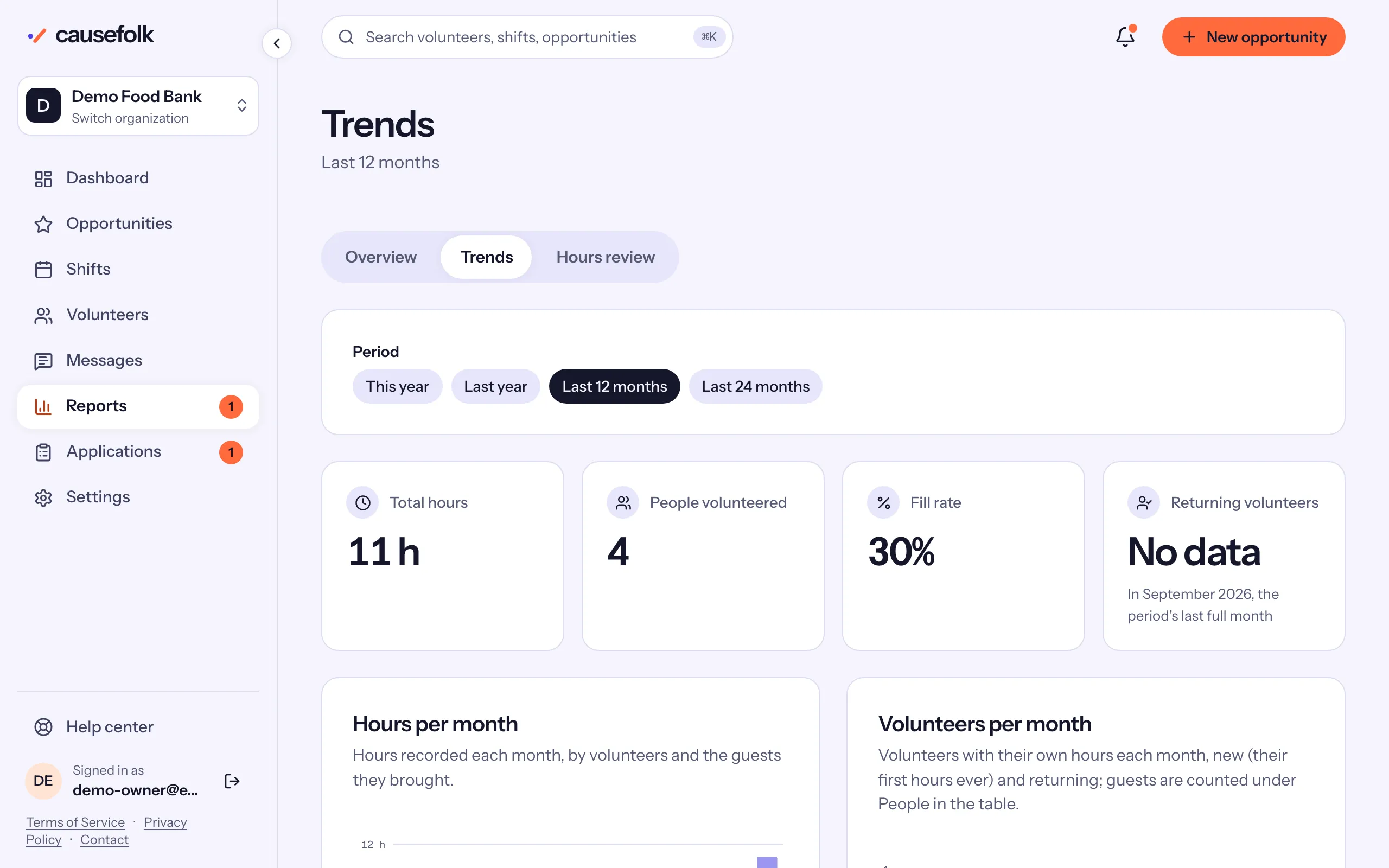
The Trends tab charts the months of a period: This year, Last year, Last 12 months (the default) or Last 24 months. The current month is marked "(to date)".
- Four cards: Total hours, People volunteered, Fill rate (confirmed people over the spots on shifts that started) and Returning volunteers (the share who had volunteered before, in the period's last full month).
- Five charts: Hours per month, Volunteers per month (new and returning), Shifts and fill rate, Attendance rate and Returning share. Each says in one sentence what it measures.
- By month, a table with every figure for each month.
The dashboard's hours card compares this month so far with the same point last month, and its "Last 12 months" card links to Trends.
Download the figures
| Download | Where | One row per |
|---|---|---|
| Download all entries | Top of the Overview | Hours entry, with its source: Shift, Manual or Self-reported |
| Download CSV | By opportunity | Opportunity |
| Download CSV | Top volunteers | Volunteer (everyone, not only the top 50) |
| Download CSV | By month, on Trends | Month |
Each download covers the period (and segment) on screen.
Show the value of the hours
An owner can enter a Value of a volunteer hour, in dollars, under Settings, then General. Reports then show an estimate under Total hours ("≈ $1,234"), Trends adds a Value column, and the Trends download gains a value column. Leave it blank to show no value.