Background checks with Checkr
Connect your own Checkr account, require a cleared check on an opportunity, and request or let volunteers start checks.
Causefolk works with Checkr, a background check company. You connect your organization's own Checkr account; Checkr runs each check in its own pages, and Causefolk shows the result and keeps volunteers who are not cleared off the opportunities that need it.
Where to find it
- Settings → Background checks: the Checkr connection. Only owners see it.
- An opportunity's form, under Requirements: Requires a cleared background check.
- A volunteer's record: the Background check card.
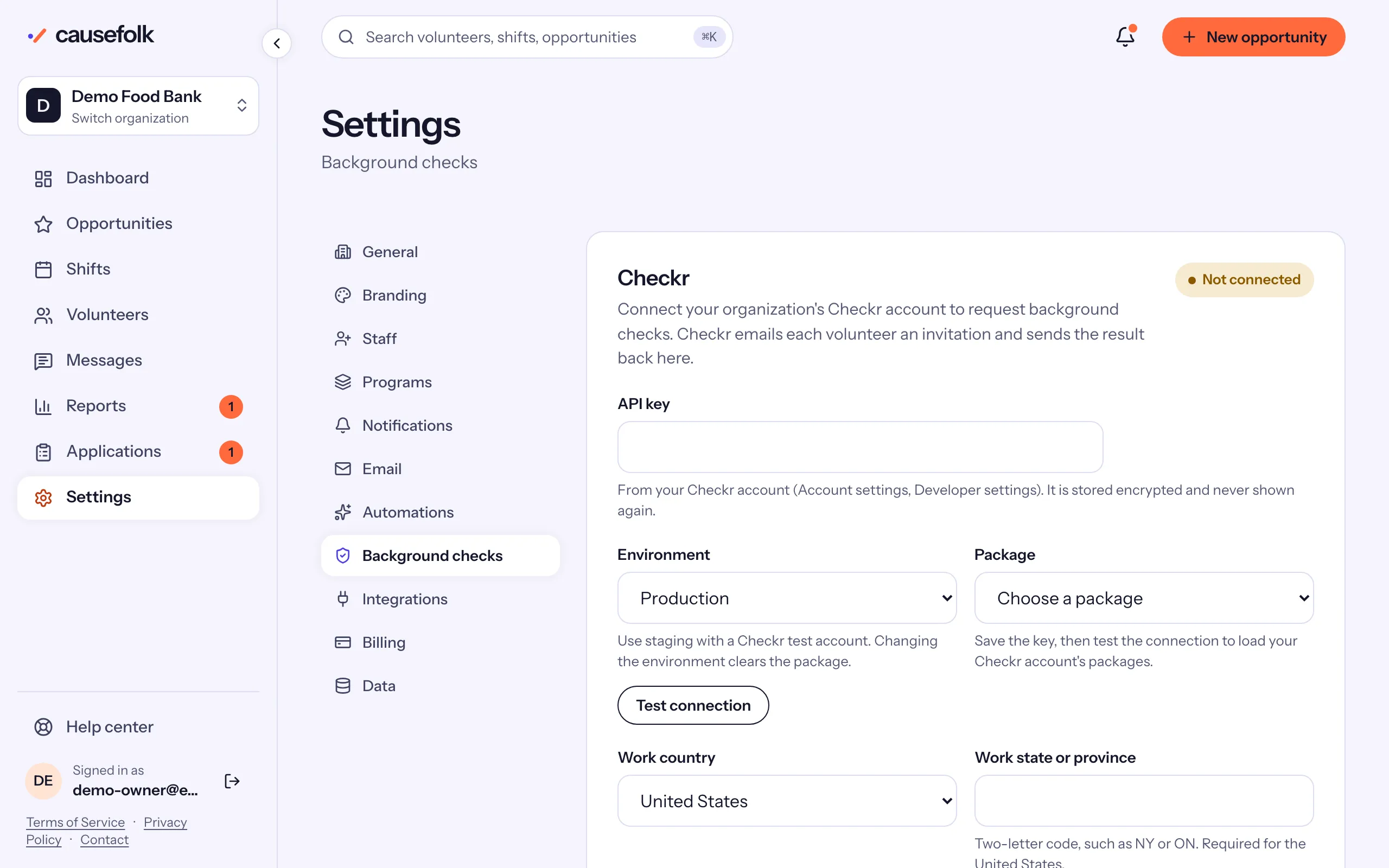
Connect Checkr
- In your Checkr account, copy your API key (Account settings, Developer settings).
- Open Settings → Background checks, paste it into API key, choose the Environment (Production, or Staging (Checkr test account) for trying it out) and choose Save.
- Choose Test connection. Your Checkr packages load; choose one under Package.
- Choose the Work country (United States or Canada) and the Work state or province, a two-letter code such as NY or ON (required for the United States).
- Set A cleared check is valid for (days).
- Leave Let volunteers start their own background check on, or turn it off so only your team requests checks.
- Choose Save.
- Copy the Webhook URL shown on the page, add it as a webhook in your Checkr account, and subscribe it to the events listed there. This is how results come back.
Require a check
On an opportunity's form, tick Requires a cleared background check and save. Volunteers then cannot sign up, or join its series, until they are cleared.
Request a check
On a volunteer's record, choose Request background check. "Checkr emailed … an invitation." The volunteer completes Checkr's form, and the card follows along: "Invitation sent …", "In progress", then "Cleared · valid until …" or "Needs review in Checkr". Open in Checkr opens the report in your Checkr account.
When the switch is on, volunteers can also start their own check from their profile, or when an opportunity asks for one at signup.
Results
Checkr decides, not Causefolk. A clear result, or one you engage (accept) in Checkr, clears the volunteer, and they get an email. Anything else reads Needs review: decide it in Checkr, and the result comes back here. Your team is notified when a check is cleared or needs review.